How do I update an iPhone app guide when the screens change?
Keep an iPhone app guide accurate after an app update. Decide what to replace, recheck markers and redactions, and swap out the copies people use.

Walkthru team
Follow the old guide in the current app and note what changed. If a label or button only moved, replace that screenshot and fix its instruction; if the order of the task changed, record it again. In Walkthru, Replace from Photos swaps a step's picture and keeps its markers and redactions for you to recheck. Then export the guide and replace the copy people actually use.
In this article
Update an existing iPhone guide
Follow the old guide in the current app
Use the reader's account role and note every screen, label or result that differs. Write down the app version and today's date.
Decide between a fix and a new recording
For a moved button, replace that step's screenshot. If the task gained a decision, changed order or lost a screen, record that part again and rewrite those steps.
Replace and review the picture
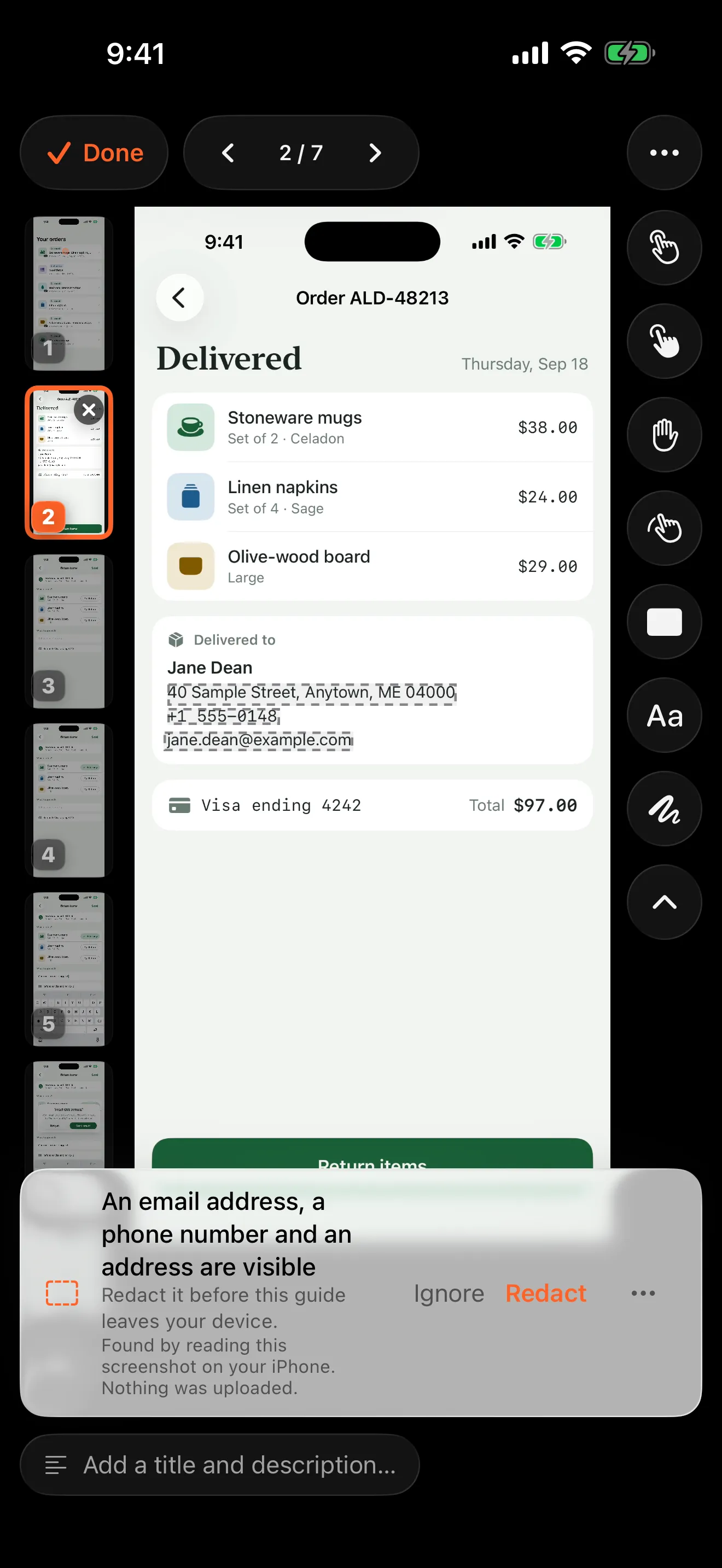
In Walkthru's step editor, Replace from Photos swaps in a new picture, and Replace screenshot picks another frame from the original recording. Recheck markers and redactions on the new picture; a different shape resets the crop.
Fix the instructions and test the task
Update control names, prerequisites and the expected result. Then follow the guide from its starting point, including any exception it describes.
Replace the shared copy
Export the updated guide, update its revision note and replace the file or help-centre page people use. Copies already shared stay as they were.
Fix what stops the reader, not every changed pixel
A new icon colour rarely needs a rewrite. A button that moved into a menu does, because the old instruction stops working. Start by following the guide in the current app and sorting what you find.
| What changed | What to do |
|---|---|
| Colour, spacing or decoration | Check the control is still easy to recognize. Update the picture only if it confuses. |
| A control was renamed or moved | Replace the screenshot, fix the instruction and move its marker. |
| A new permission or confirmation | Add the step or prerequisite, and say what the reader should choose. |
| The task follows a new order | Record it again and rebuild that part of the guide. |
| Only some account roles see it | Name the role, or keep separate instructions for each. |
A guide is current when someone can follow it, not when every screenshot is recent.
Keep a short record for each guide
Put a note like this in the guide, or wherever your team keeps guides.
Example:
Task: Change the delivery instructions on an existing order
Audience: Customer account, iPhone
App/version checked: [app name and version, if available]
Guide owner: [person or team]
Last tested: [date]
Review trigger: Checkout, order-details or delivery settings change
A specific trigger beats assuming every release breaks every guide. Add a calendar review too, to catch changes nobody told you about. Set how often by how often the app changes. A tip block at the top of the guide is a good place for this note.
Take screenshots that survive the next update
Technical writers who look after hundreds of screenshots often use fewer of them and crop the ones they keep. A full-screen picture goes stale when any part of the app changes. A picture cropped to the part the step is about survives a new tab bar or header.
- Crop to the part that matters, but keep enough for the reader to recognize the screen. Walkthru’s per-step crop keeps the original, so you can widen it later.
- Keep a list of which guide uses which screen. When the app changes, the list tells you which guides to check. That is the hard part of keeping screenshots current.
- Skip pictures of screens readers can already see, such as a settings list they can read for themselves. Keep pictures where they need help finding something.
If you document your own app, your developers may already capture screenshots in automated UI tests. Those can refresh a help centre’s pictures, but a person still writes the instructions and places the markers.
Replace the picture, then fix everything on it
Say the old instruction reads “Tap Edit at the top right”, but the app now hides Edit delivery instructions inside a menu. A new picture alone leaves two problems: the instruction points to the wrong place, and the old tap marker may land on the wrong control.
So replace the screenshot, rewrite the instruction with the new label, and add a step for opening the menu if needed. Then check the crop, markers, text labels and redactions. Walkthru keeps accepted redactions when you replace a picture, but it can’t tell whether the private field moved. Review any new redaction offers too.
If the new picture has a different shape, the crop resets to show all of it. Choose a new crop on purpose. In the video, that step shows the new picture instead of footage that no longer matches.
Test the whole task, even after a small change
A new button may appear only after a permission is granted or an earlier field is filled in. So even a one-step edit deserves a full run-through.
Ask someone to start where the guide says, with the reader’s account role. Have them mark the first place they need help the guide doesn’t give. Fix that before touching anything else. At the end, check that the promised result really appears.
If the last step commits something real, test with sample data or a training account.
Replace the copy people actually use
An updated file on your phone doesn’t help someone opening last month’s attachment. Find where the guide lives: a help-centre article, a shared folder, an onboarding page or a saved support reply. Replace the file there, update its revision label and check links from other documents.
Example file name: delivery-instructions-v2-2026-09-27.pdf. Keep one clearly marked
current version in the shared location, and archive the old one.
Before you finish, confirm:
- The starting screen, account role and permissions still match.
- Every named control exists, and every marker points at it.
- Private details are covered in the exported file.
- The final screen matches the promised result.
- The shared copy has the new content and revision note.
Walkthru doesn’t track versions, host a guide at a fixed link or update copies people have already downloaded. Keep the record yourself, and replace shared copies by hand. If the guide is part of a formal procedure, keep its owner and review date with the mobile SOP template.
Related questions
Do I need to redo the whole guide after every app update?
No. First check whether the update touches the task. A moved or renamed button may need one new screenshot and instruction. A changed sequence or a new permission needs a wider review.
Does Walkthru detect outdated screenshots?
No. Someone has to compare the guide with the current app. Walkthru edits and exports guides; it doesn't watch other apps or update files you have already shared.
What happens to redactions when I replace a screenshot?
Accepted redactions stay where they were, and Walkthru scans the new picture for fresh offers. The private detail may have moved, so check every box and anything newly visible.
Will a video export still use the old footage after I replace a picture?
No. A step replaced from Photos is detached from the original recording, so the video shows the new picture for that step. Watch the video before you share it.
A little more to explore
Keep reading
PDF & exports
Turn iPhone screenshots into a step-by-step guide
Turn iPhone or iPad screenshots into a step-by-step guide. Put them in order, write one clear instruction per step, cover private details and export a PDF.
Getting started
Mobile app SOP template and worked example
A reusable SOP template for a task done in an iPhone or iPad app, with a worked example, a checklist for new staff and a simple way to test it.
Privacy
How to properly redact a screenshot on iPhone
Cover private details with a solid shape and share a flattened copy. The free Markup method on iPhone and iPad, why blur fails, and what to check.