How do you show taps in an iPhone screen recording?
iPhone screen recordings hide your taps. Add tap markers afterwards in Walkthru, or try an AssistiveTouch custom gesture while you record.

Walkthru team
As of iOS 27, the iPhone screen recorder has no setting that shows your taps. The free workaround is an AssistiveTouch custom gesture, which replays a tap with a visible circle, but test a short recording first. For a step-by-step guide, record normally and add tap markers afterwards in Walkthru, then export a PDF, images or a video in which the markers animate.
In this article
Add tap markers after recording with Walkthru
Record the task
Use Control Center or Walkthru's Record this device option. Pause briefly on each important screen so its controls are readable.
Import and review the steps
Import the recording and review the steps Walkthru found. Delete extra steps or pick a clearer frame where needed. If you only have screenshots, import those instead.
Place the markers
Choose a tap, double-tap, press-and-hold or swipe marker and place it on the control. Pick a colour that stands out against the screen.
Choose the output
Export a PDF or Step images for a written guide, or a Video reel with Animate markers turned on.
Check the exported file
Open the file you are about to share and check that each marker sits on its target and appears at a sensible moment.
On an iPad, a connected mouse or trackpad is the simplest route; see showing touches in an iPad screen recording.
The recording shows the result, not the finger
When a button opens another screen, the recording shows the new screen. Where your finger landed is lost. Walkthru works from those visible changes and gives you a screenshot for each step to annotate.
So the marker is your instruction, placed by you. Put it on the control the reader should use, and check that it agrees with the caption and the screen.
Add markers after recording
Walkthru has four marker types: tap, double-tap, press-and-hold and swipe. Each comes in seven colours, so you can pick one that stands out against the app. A swipe marker shows a direction; a press-and-hold marker shows a long touch.
Where the marker ends up depends on the export:
- PDF guide, Step images and Markdown bundle: the marker is drawn into the picture.
- Video reel: with Animate markers on, each marker animates in after the screen settles. With it off, markers show from the start of each step.
The video uses the recording’s footage where it can. A step with a redaction stays on its still picture, so private content cannot slide out from under the cover. Steps made from screenshots also stay still while their markers appear.
Try AssistiveTouch while you record
If you want circles in the raw recording itself, try an AssistiveTouch custom gesture (Apple’s guide):
- Open Settings → Accessibility → Touch → AssistiveTouch and turn it on.
- Choose Create New Gesture, record a tap, and save it.
- Open the AssistiveTouch menu, choose Custom, then choose your saved gesture.
- Drag it onto the control you want and let it replay there.
- Make a short test recording with the same device and recording method, and play it back.
Each tap you want to show has to go through the custom gesture. Apple’s guide covers the replay, but it says nothing about screen recordings, and reports differ by iOS version. Some people in Apple’s forums see the circles in their recordings. An iPadOS 18.4 report found the touches missing. That is why the test recording matters.
Or drive the demo with a mouse
An iPhone can use a Bluetooth mouse through AssistiveTouch, and the mouse’s round pointer shows where you are about to tap. MacMost’s tutorials use exactly this: the circle in them “is just the pointer you get when you connect a mouse to your device” (MacMost).
- Turn on Settings → Accessibility → Touch → AssistiveTouch.
- Under Devices, pair the Bluetooth mouse.
- Record the demo using the mouse for every tap, not your finger.
The pointer is easier to keep in the recording than a custom gesture, because every click shows it. As with any method, play back a short test first.
Match the marker to the instruction
A dot helps only if it explains the action. Pick the gesture the reader should perform and place it where the control is visible.
| Action | Marker and wording |
|---|---|
| Open a named control | Tap marker on the control, with “Tap Save” or the real label. |
| Double-tap something | Double-tap marker, and say “double-tap” in the text. |
| Open a menu by holding a control | Press-and-hold marker, and describe the menu that opens. |
| Move through a screen | Swipe marker showing the direction, and name where it leads. |
Keep the marker off the label the reader needs to read. Use a contrasting colour, and make the words work alone: “Tap Save” beats “Tap the blue circle”. Explain any other gesture, such as a pinch, in words or with the recorded footage.
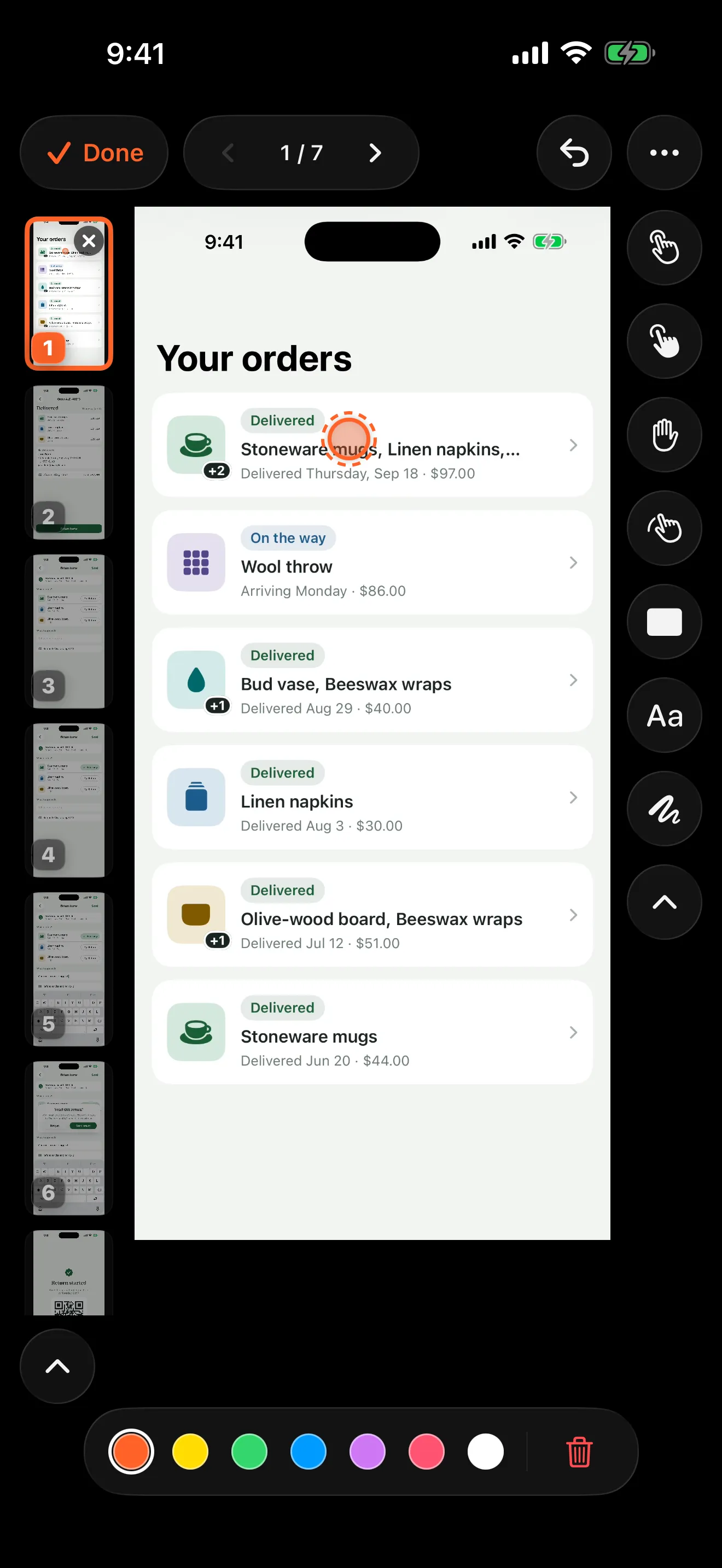
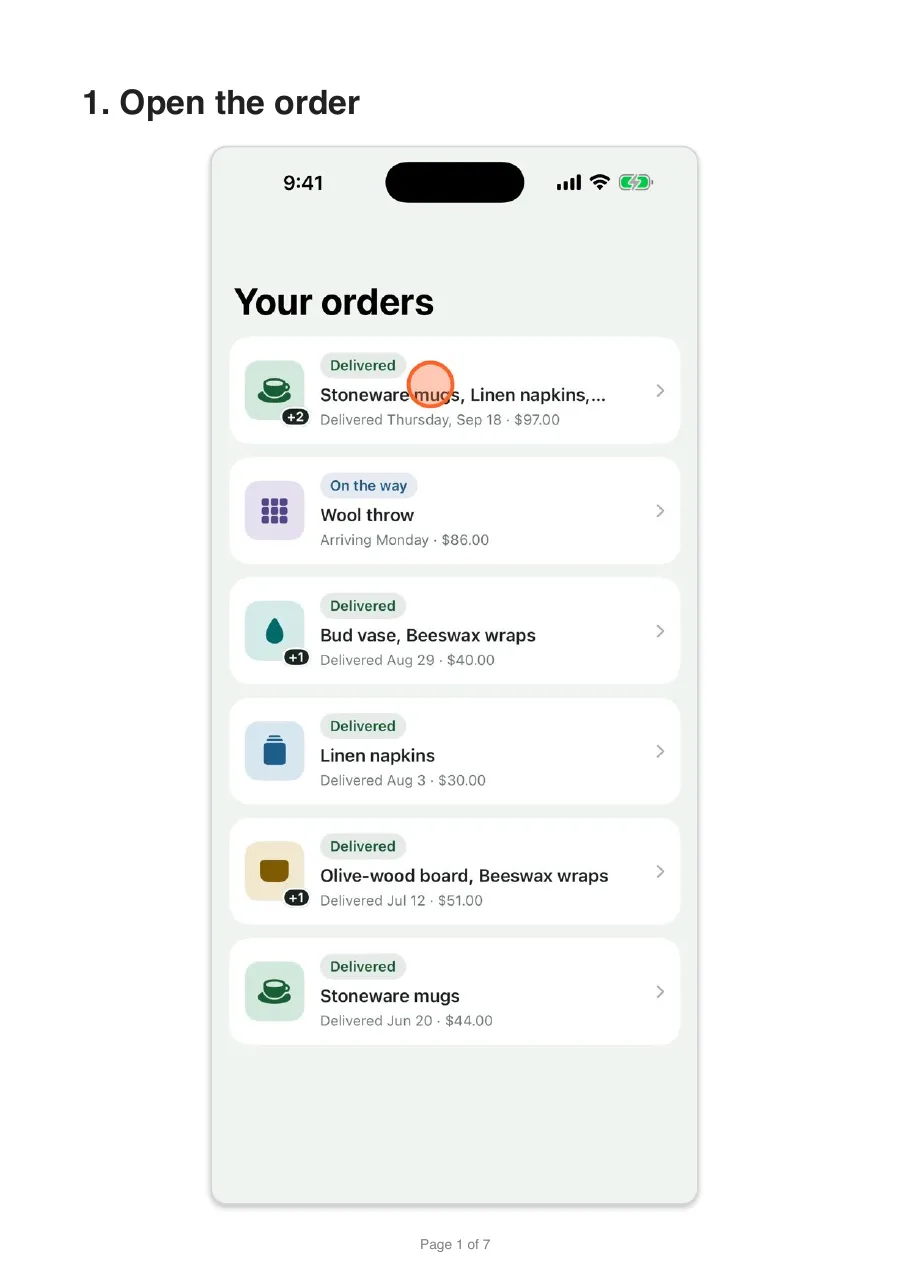
Mark the control that starts the step. In the site’s Alder return demo, the tap marker goes on Return items in the order details picture. On the next screen it would be too late: that shows where the reader arrived, rather than how they got there.
Why does a marker look wrong in the export?
| Problem | What to check |
|---|---|
| The dot points at an empty area | The picture was replaced or cropped after the marker was placed. Move the marker. |
| The gesture is hard to spot | Check the colour and position in the exported file rather than the zoomed editor. |
| The marker appears later than the real tap | The animation is timed for viewing, separate from your actual touch. |
| The instruction is missing from the video | Add a short label on the picture or a voiceover. See what each export includes. |
For spoken guidance, see adding a voiceover to a screen recording.
Showing touches in a live presentation
Markers added after recording are for recorded tutorials. If you are showing a phone through a cable or screen sharing, test your setup with the real connection first. An AssistiveTouch circle on your own screen can fail to reach remote viewers, and it shows one point rather than several fingers at once.
Related questions
Does turning on AssistiveTouch show all my taps?
No. AssistiveTouch shows a circle only when you replay a custom gesture you saved. Your normal finger taps stay invisible.
Will the AssistiveTouch circles appear in my recording?
Reports differ between iOS versions. Make a short test recording on your device and play it back before you record the full tutorial.
Can I add tap indicators to an old recording?
Yes. Import it into Walkthru, review the steps and place the markers. The video holds no record of where your finger was, so you choose each position.
Can I mark gestures on screenshots without a recording?
Yes. Import the screenshots and add the same markers to each step. A video export holds each screenshot while its markers animate.
Do step captions appear in the video?
No. A step's title and description go into the PDF and Markdown exports. For words on screen, add a text label to the picture, or record a voiceover.
A little more to explore
Keep reading
PDF & exports
Add a voiceover to an iPhone screen recording
Talk while you record on iPhone or iPad, or add a voiceover afterwards, one step at a time, over a recording or screenshots. Includes a script pattern.
Comparisons
Screenshot guide or video tutorial: which to use?
Screenshots or video for a how-to? Choose by what the reader does next, whether that's following along, learning a gesture or looking one detail up.
PDF & exports
Turn a screen recording into a PDF guide on iPhone
Turn an iPhone or iPad screen recording into a numbered PDF guide with one screenshot per step. The free manual route, the faster way, and what to check.