How do you turn an iPhone screen recording into a PDF?
Turn an iPhone or iPad screen recording into a numbered PDF guide with one screenshot per step. The free manual route, the faster way, and what to check.

Walkthru team
iOS can turn a screen recording into a PDF only by hand: in iOS 27, Photos can save a paused frame as a photo, and Files can combine those pictures into one PDF. It will not find the steps, number them or add instructions. Walkthru does that on the iPhone or iPad: it splits the recording into steps, takes a full-resolution frame from each, and exports a PDF guide in one of three layouts with markers and redactions drawn in.
In this article
Convert an iPhone screen recording into a PDF guide
Record or import the task
Record the screen from Control Center or with Walkthru's Record this device option, or import a recording you already have in Photos. If there is no recording, import screenshots instead and each becomes a step.
Let Walkthru split it into steps
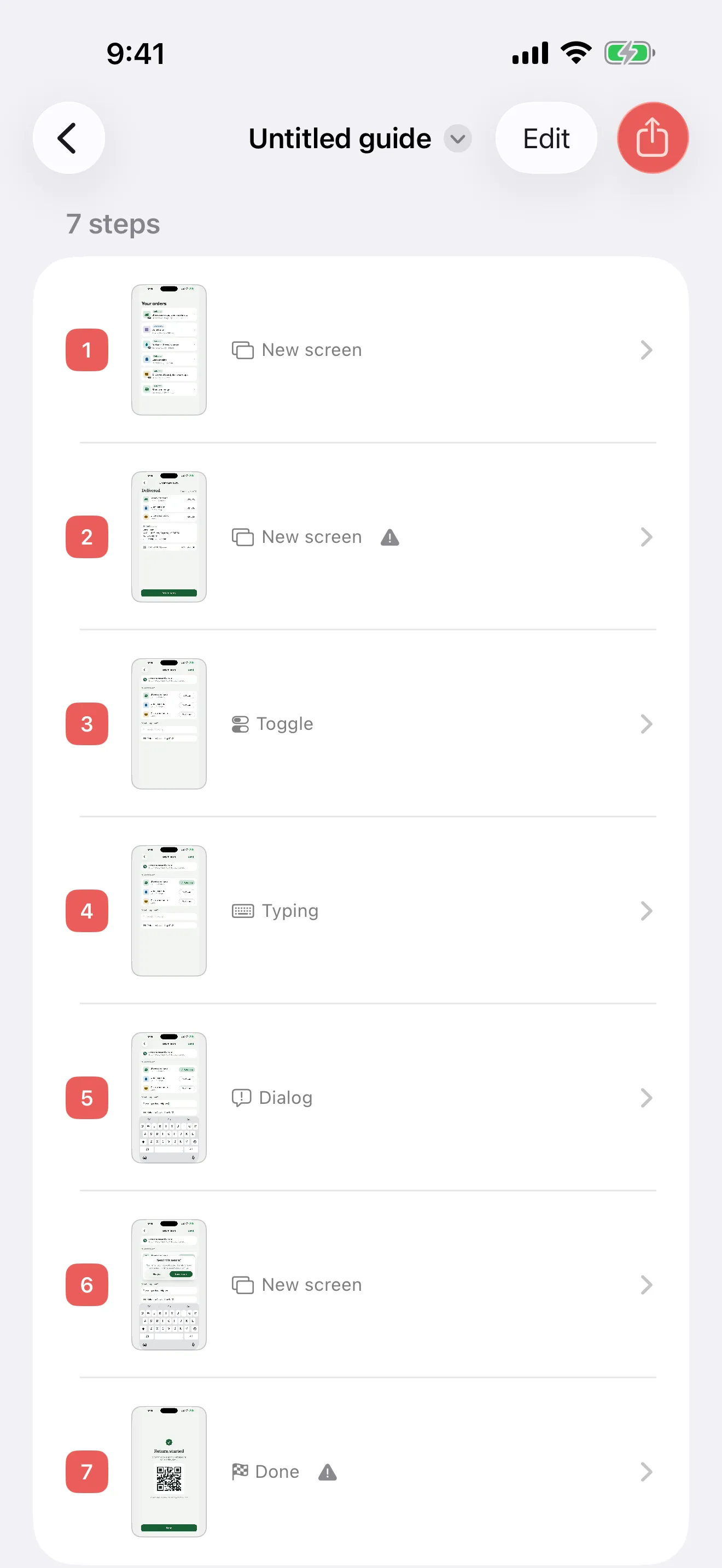
Walkthru reads the recording frame by frame and cuts wherever the screen changed from one settled state to another. Each cut becomes a step with a full-resolution screenshot. Delete or fix any step that does not help.
Write and mark each step
Write the instruction for each step, then tap the picture to place a marker where the reader has to touch.
Cover anything private
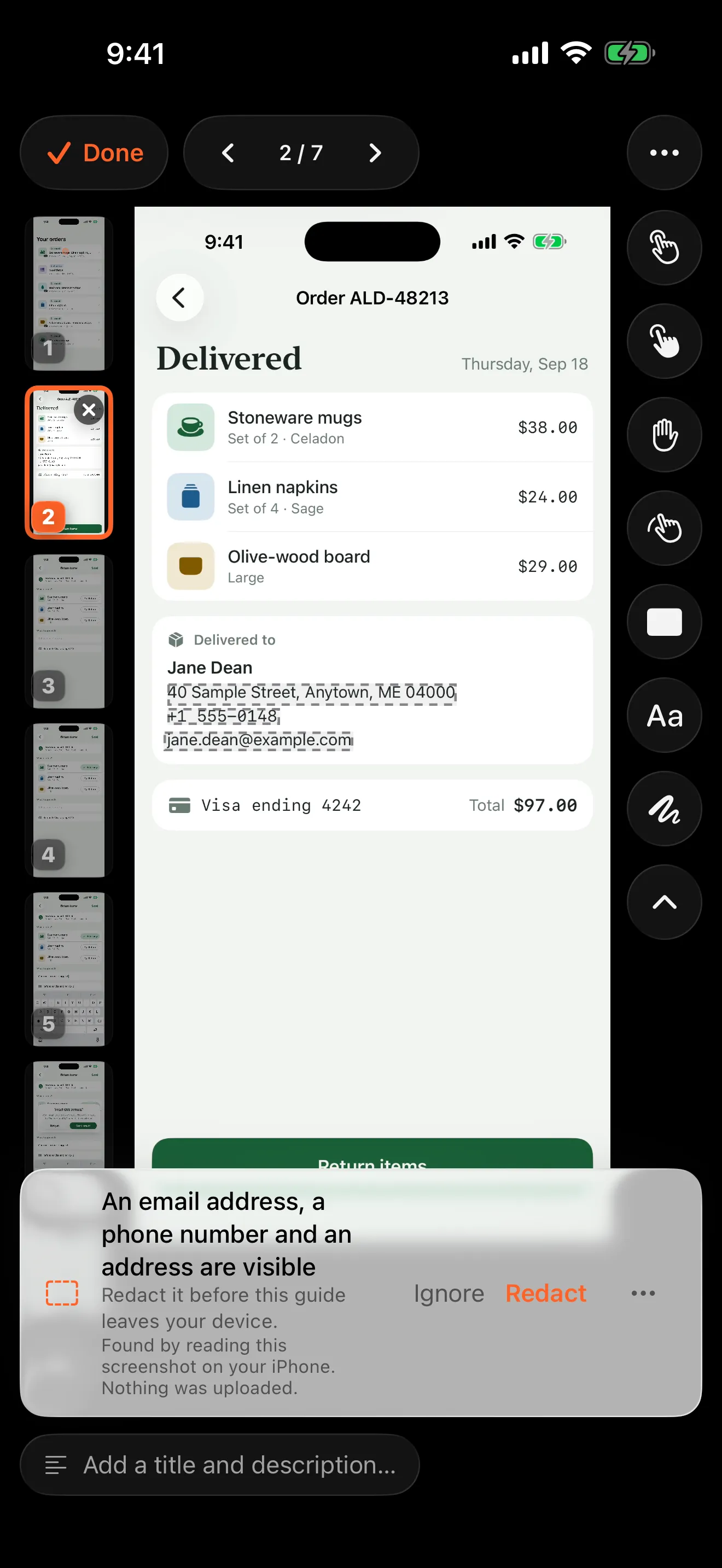
Cover account numbers, addresses and names with a solid box. Covers are drawn into the picture before any crop, so a crop is never what hides them.
Choose a layout and export
Choose PDF guide, then one step per page, compact or checklist. Pick US Letter or A4, add a cover page and bookmarks for a long guide, then save to Files or share it.
What the conversion actually involves
“Video to PDF” sounds like a format change. It isn’t. A video is a stream of frames; a guide is a handful of moments. The real work is deciding which frames matter.
That breaks into three questions:
1. Where does each step start? A ten-second recording through four screens holds four steps, but nothing in the file marks them. You find them by spotting when the picture changed from one settled state to another.
2. Which frame shows each step? Not the first frame after the change. That one is mid-animation, and the screenshot comes out smeared. The right frame comes from the middle of the still stretch, after the screen stopped moving.
3. How do frames become pages? A tall phone screenshot on a Letter page leaves most of the width empty. The layout has to fill that space with the step number, the instruction and clean white space.
Doing it on the phone
Walkthru answers all three on the device.
It reads the recording frame by frame and cuts where the picture changed and then settled. It filters out some small or repeating changes. Live-updating content, such as a timer, can still add an extra step, so review the result and remove, split or reorder steps.
For each step, it takes a full-resolution frame from the middle of the still stretch. You get a guide with one step per screen, each labelled with the kind of change: a new screen, a scroll, typing, a dialog. Then you write, mark, cover and export.
iPad recordings work the same way. An iPad-shaped screenshot keeps its shape on the page.
The three PDF layouts
| Layout | Best for | What a page holds |
|---|---|---|
| One step per page | Following along on a screen while doing the task | A large screenshot, the step number, the instruction |
| Compact | Printing, or a long guide someone skims | Several steps per page, screenshots scaled down |
| Checklist | Onboarding, audits, anything with a tick box | Step text with a box and a small screenshot |
Choose US Letter, A4, or an automatic option that follows your region. A cover page and bookmarks are optional. Past about fifteen steps, bookmarks are what make the guide easy to move around.
What gets drawn in
Markers, crops and redactions are drawn into the exported picture. They are not separate layers a PDF reader could switch off. For redaction, that is the point: the covered pixels are gone from the exported file, so a recipient cannot recover them.
Covers are drawn before the crop, so a crop is never what hides a detail. This applies to the export. The editable guide keeps your original screenshots, and your source recording and Photos library stay as they were.
When you get too many or too few steps
Step detection is a starting point. It sees visual changes, so loading screens, scrolling and a changing keyboard can add steps you do not need. Several taps on a screen that barely changes may need more explanation than one step gives.
| What you see | What to do |
|---|---|
| An extra step showing a spinner or a passing state | Delete it, then check the steps around it still connect. |
| One step holds two important decisions | Split the step, then use Replace screenshot to choose the right frame for each half. |
| A screenshot caught the screen mid-animation | Use Replace screenshot to choose a clearer frame, or Replace from Photos with a real screenshot. |
| The right picture has no instruction | Write the action and what should happen. Walkthru finds steps; it does not write them. |
| The PDF is readable only when zoomed in | Try one step per page, and check any crop before exporting again. |
Aim for one clear action or decision per step, not one page per tap. Typing a short return reason may be one instruction, even though it takes many taps. The confirmation that follows deserves its own step, because it is a separate decision with a visible result.
An example: a return request
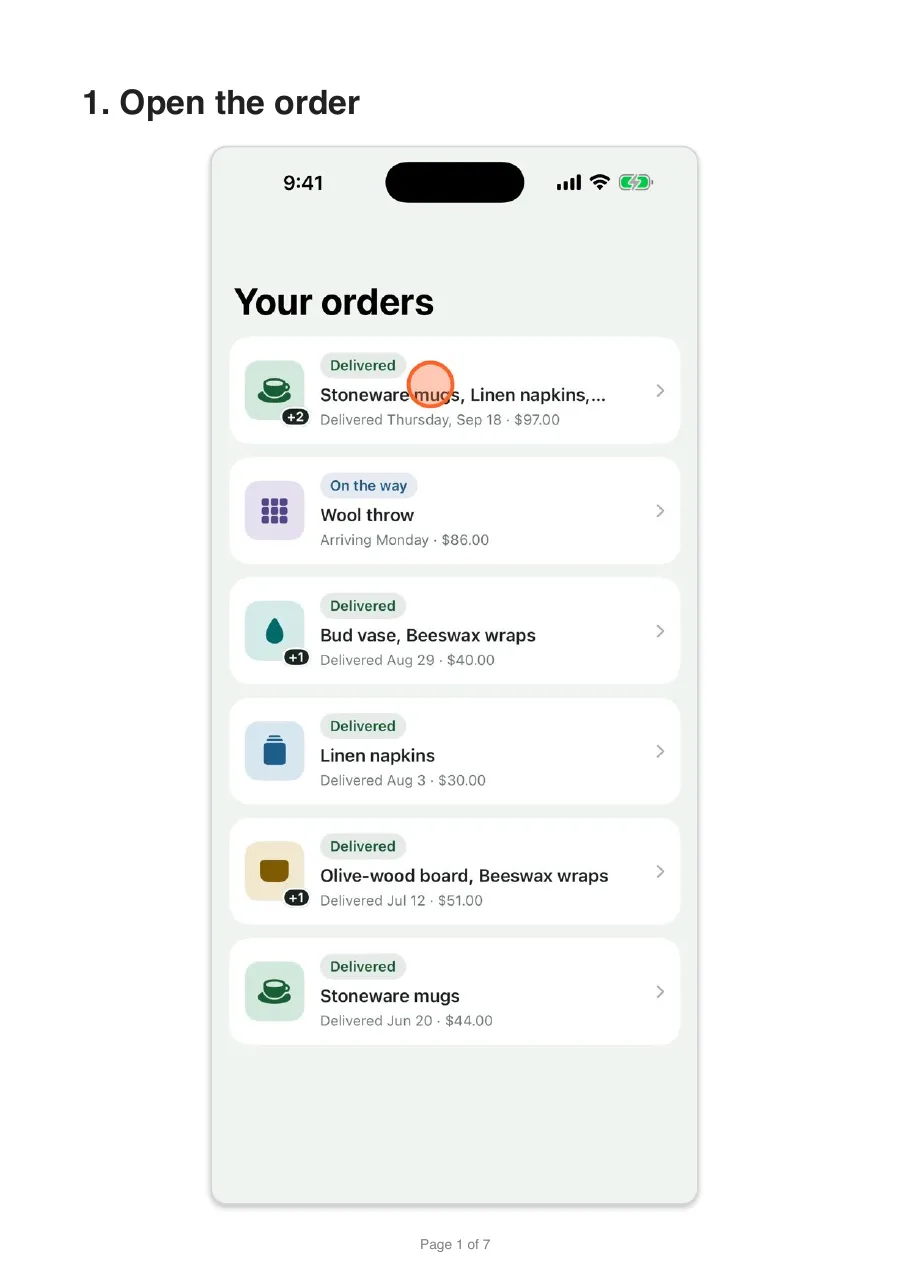
Record from the order list to the final confirmation. Review the steps Walkthru found, then write instructions such as “Open the order”, “Choose the item”, “Describe the problem” and “Review and send the request”. End with what success looks like: the return-started screen.
See the site’s real return walkthrough for how the recording, the chosen frames and the finished guide relate. It shows the output, not how long your own guide will take.
The free way: do it by hand
In iOS 27, play the recording in Photos, pause on each screen you want, tap the More button and choose Save Video Frame as Photo (Apple’s instructions). For a plain PDF of those pictures, save them to Files, select them and choose Create PDF. For instructions, place them in a document app such as Pages, write a step under each picture and export that as a PDF.
You control the layout, but you pick, order and maintain every picture yourself. If the screenshots already exist, start with turning screenshots into a guide. If you only need the pictures, see getting screenshots out of a screen recording.
Whichever way you make it, open the PDF before you send it. Check the first and last steps, the smallest label, the instructions and every private detail. The exported file is what the reader gets.
Related questions
Can iOS convert a screen recording to PDF on its own?
Only by hand. In iOS 27, open the recording in Photos, pause on each screen you need, tap the More button and choose Save Video Frame as Photo. Save those pictures to Files, select them there and choose Create PDF. iOS will not find the steps, number them, add instructions or cover private details; that is the part a guide app does.
What resolution are the screenshots in the PDF?
Walkthru extracts each frame at the recording's full resolution, not from a preview. The PDF then compresses the pictures to a print-friendly resolution so the file is small enough to email. For the full-resolution pictures, export Step images, which saves each step as a PNG at its original size.
Which PDF layout should I choose?
One step per page for a guide someone follows on screen while doing the task. Compact when the guide will be printed or skimmed and you want fewer pages. Checklist when the reader ticks steps off as they go, as in an onboarding or audit procedure.
Can I get Markdown, images or video instead?
Yes. The same guide exports as a Markdown bundle for a docs site or a repository, as Step images (annotated PNGs) for a help centre or a chat reply, or as a Video reel that uses the recording's footage, with optional narration.
Can I make the PDF from screenshots instead of a recording?
Yes. Walkthru makes one step from each screenshot, in the order you pick them, and the PDF export works exactly the same way from there.
Does it work with an iPad screen recording?
Yes. Record the iPad from Control Center or with Walkthru, and import it the same way. An iPad-shaped screenshot keeps its shape on the PDF page.
Does the free version watermark the PDF?
Yes. The free tier exports every format with no cap on steps or guides, but each export carries a watermark and there is a limit of three exports a day. Pro removes both, with a lifetime purchase or a seven-day pass that does not renew. See the pricing section for the current offer.
A little more to explore
Keep reading
PDF & exports
Turn iPhone screenshots into a step-by-step guide
Turn iPhone or iPad screenshots into a step-by-step guide. Put them in order, write one clear instruction per step, cover private details and export a PDF.
Privacy
How to properly redact a screenshot on iPhone
Cover private details with a solid shape and share a flattened copy. The free Markup method on iPhone and iPad, why blur fails, and what to check.
PDF & exports
Get screenshots from an iPhone screen recording
Save one frame from a screen recording in Photos, or get a full-resolution screenshot of every screen in the recording at once, numbered in order.