WalkthruComing soon

For anyone who has to explain an app

Record it once.
Get the guide.

Screen-record the flow on your iPhone or iPad. Walkthru splits it into steps, you show where to tap and cover anything private, and out comes a guide your customer, a new teammate or your mum can follow. No Mac, no account, nothing uploaded.

See how it worksComing to the App Store
  • iPhone and iPad
  • No account
  • Free to download
  • PDF · Markdown · Video

What you get

Return an item · 7 steps

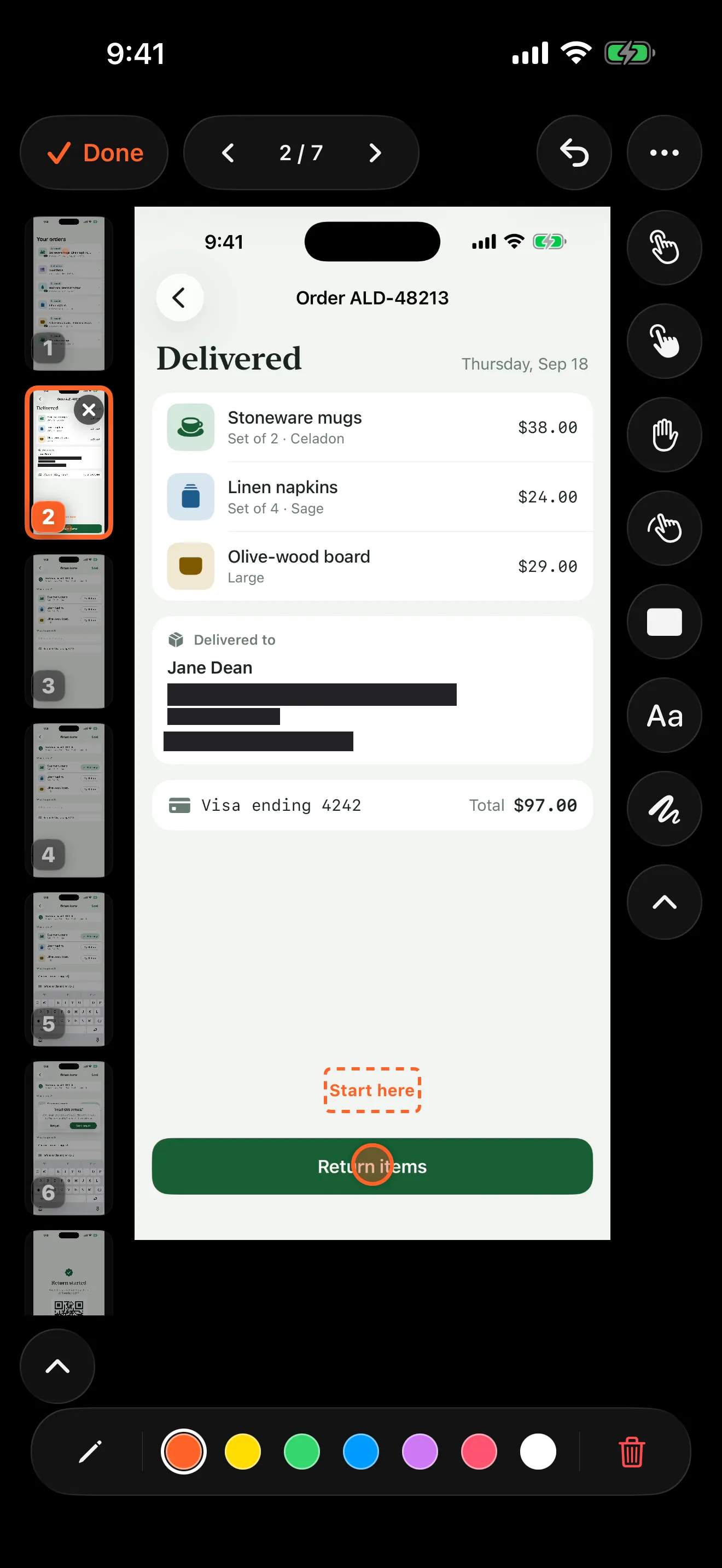
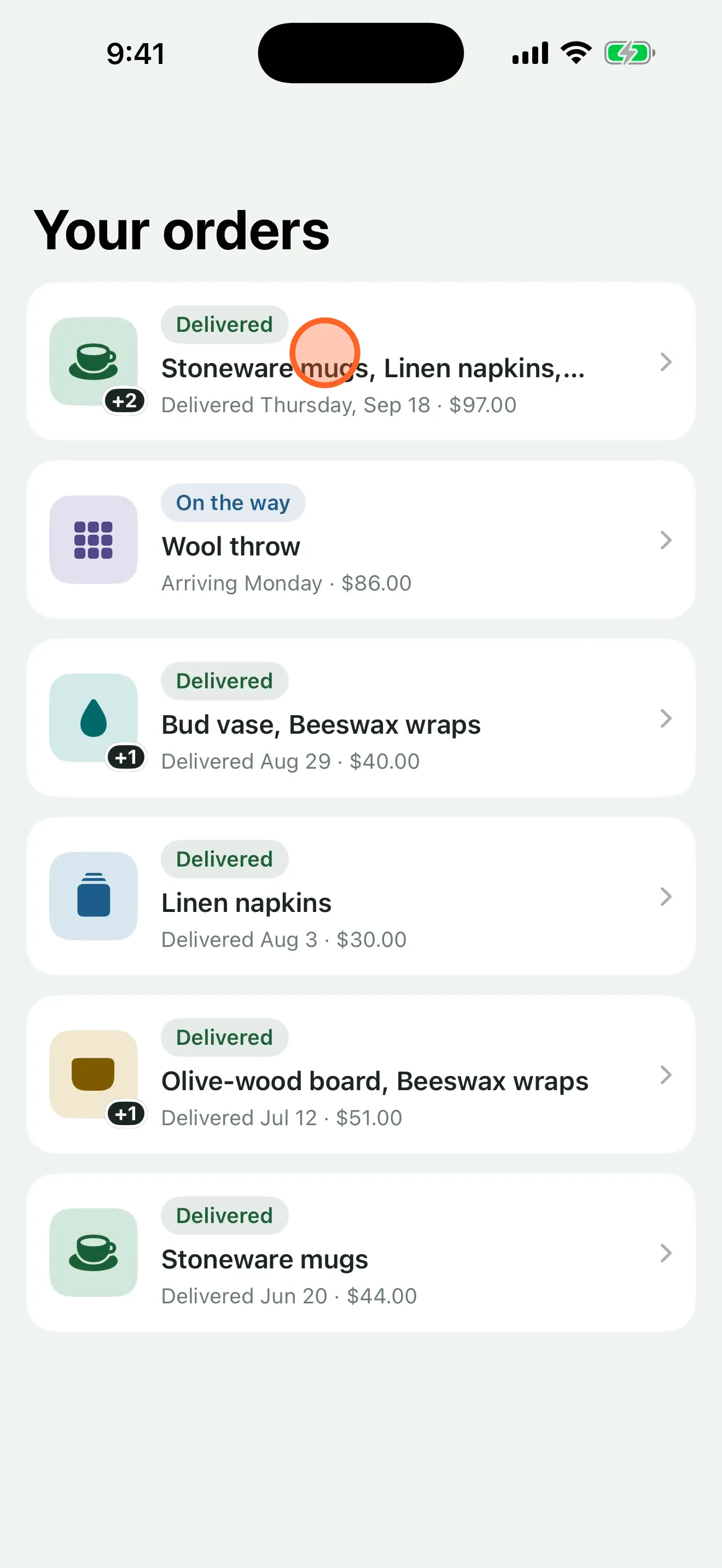
  1. Step 1 of the finished guide: a list of orders, with a tap marker on the delivered order.

    1Open the order

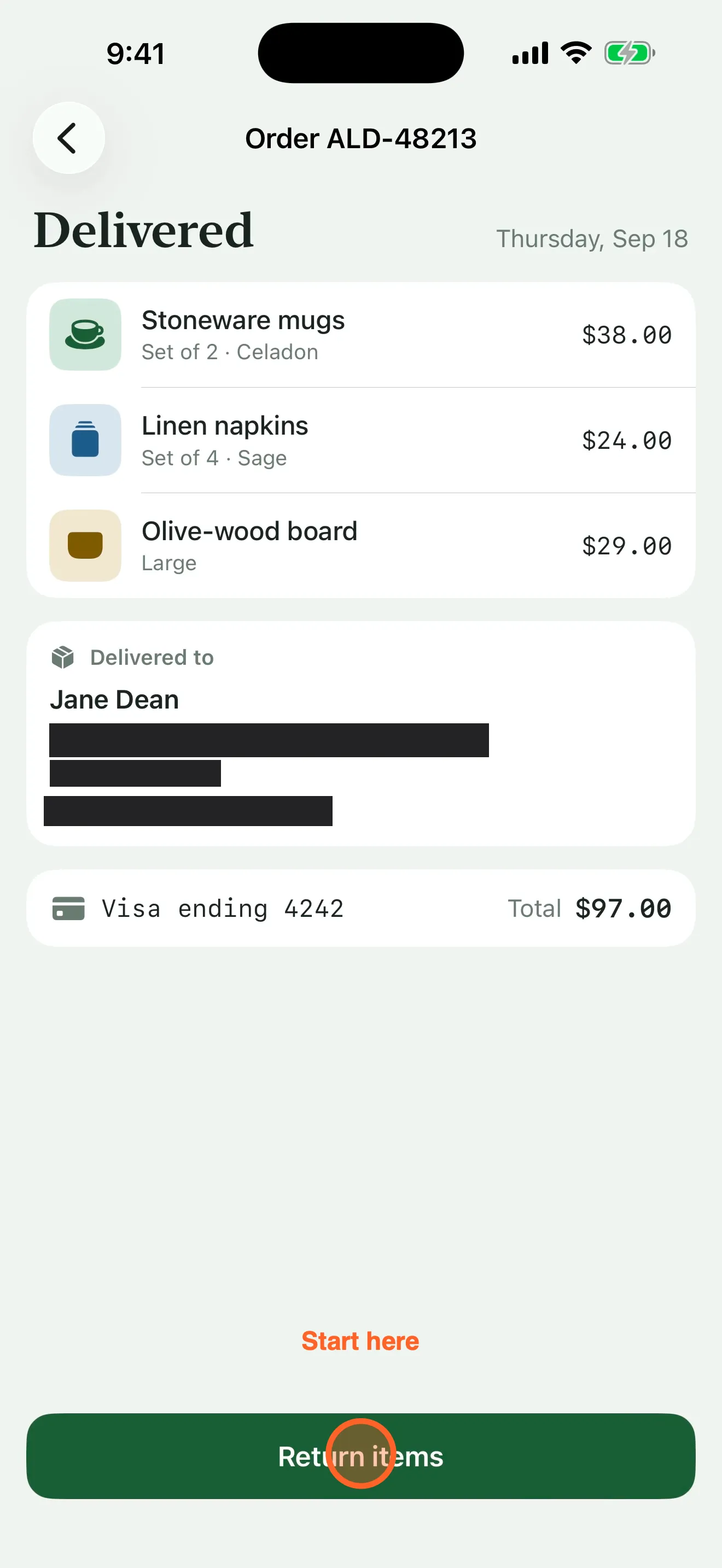
  2. Step 2: the order’s details, with the delivery address, phone number and email covered by solid black redactions, a “Start here” label and a tap marker on the Return items button.

    2Tap Return items

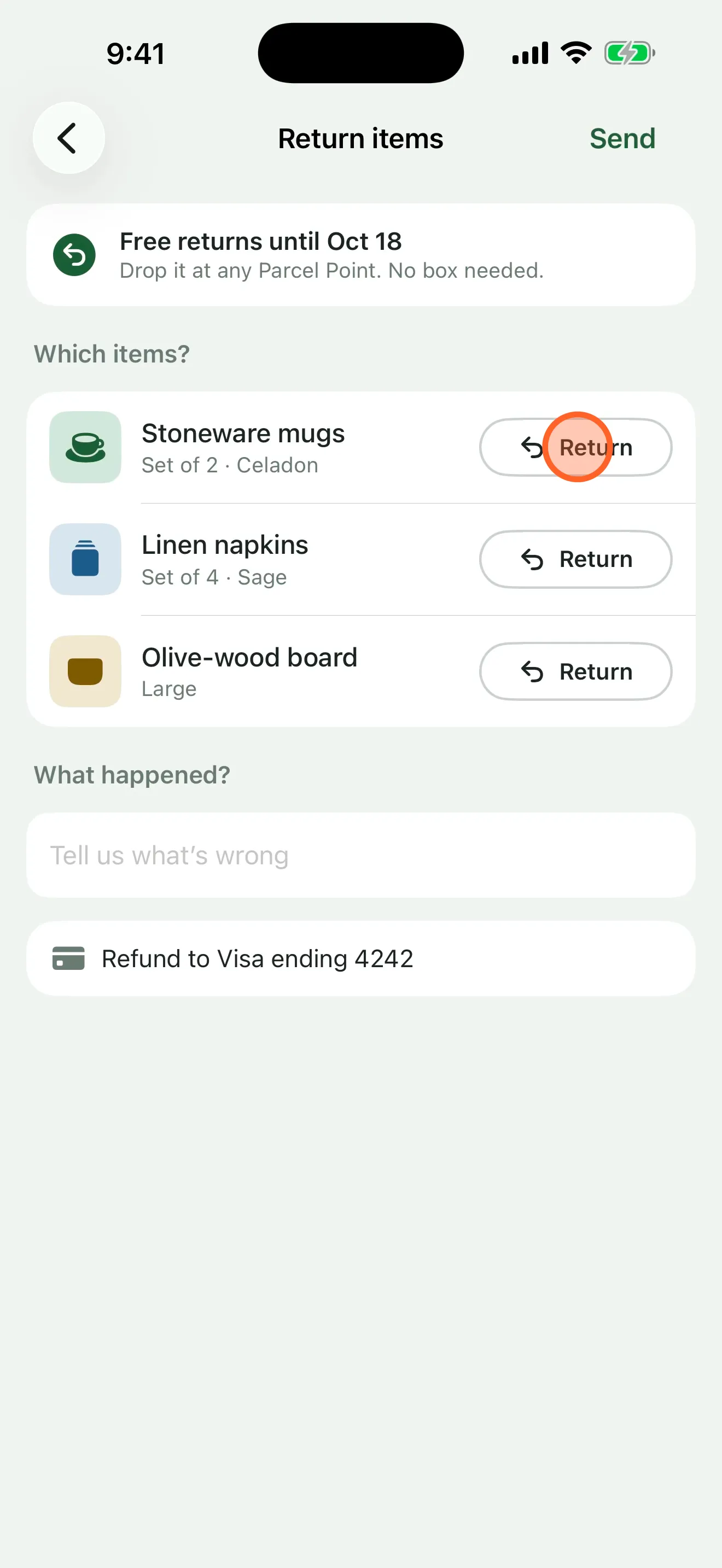
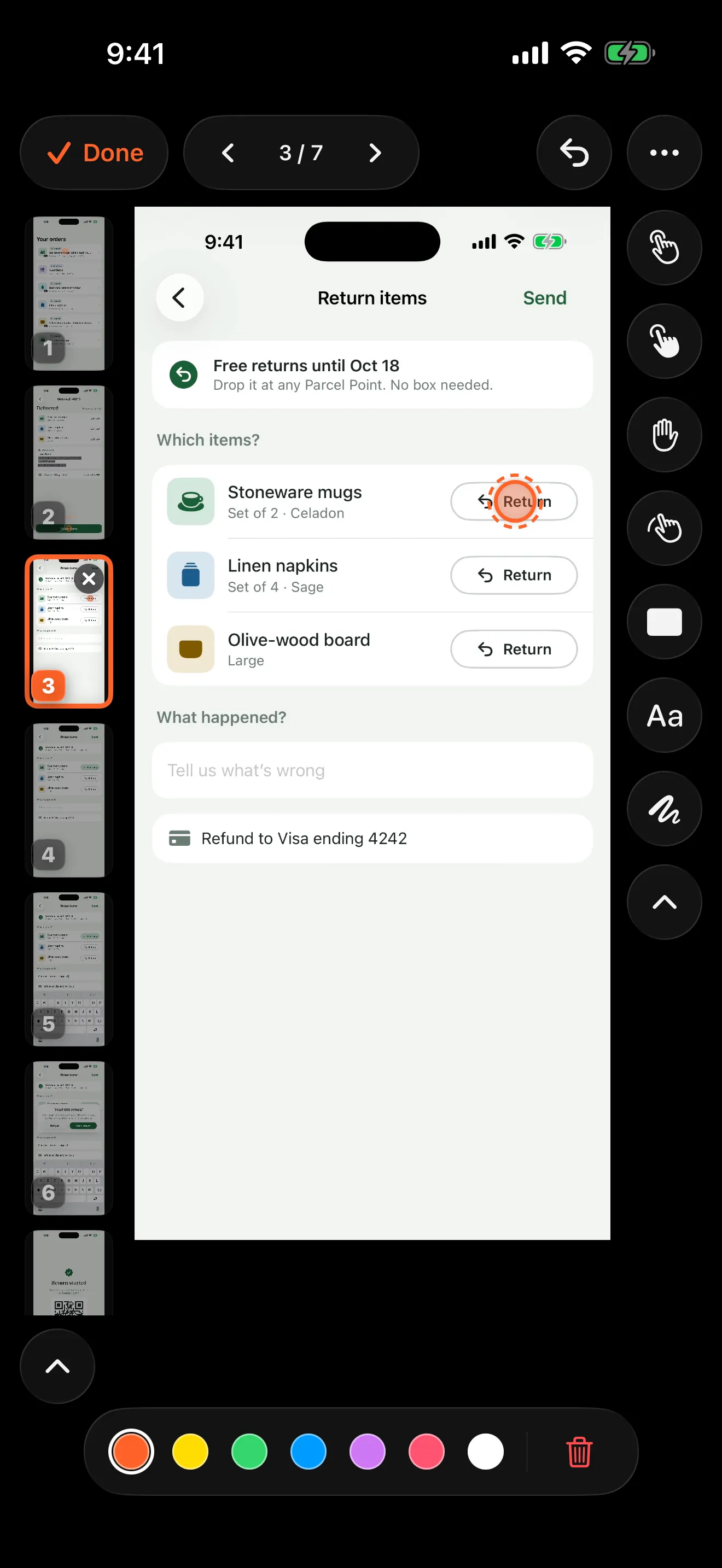
  3. Step 3: the return form listing three items, with a tap marker on the Return button beside the stoneware mugs.

    3Pick what you’re sending back

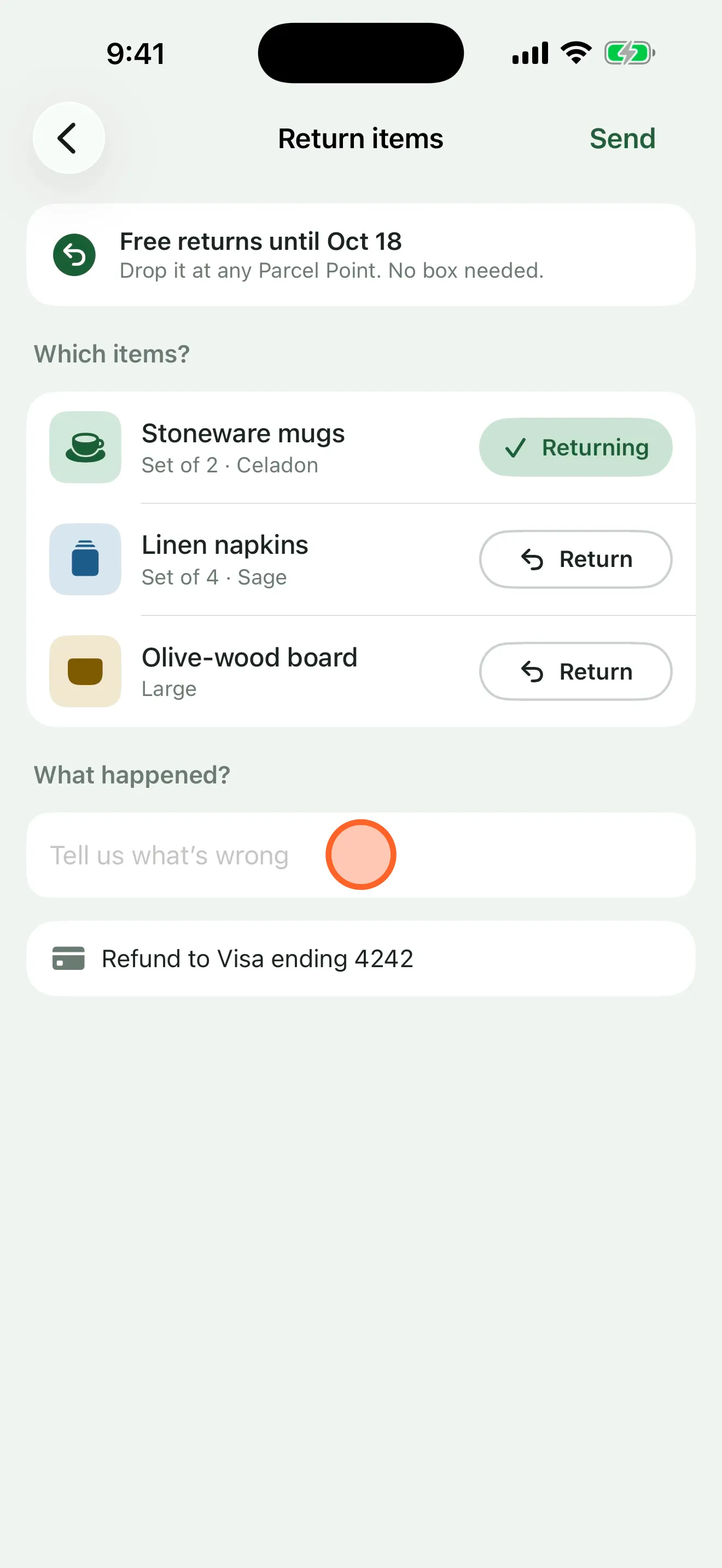
  4. Step 4: the mugs marked as returning, with a tap marker on the empty “Tell us what’s wrong” field.

    4Say what went wrong

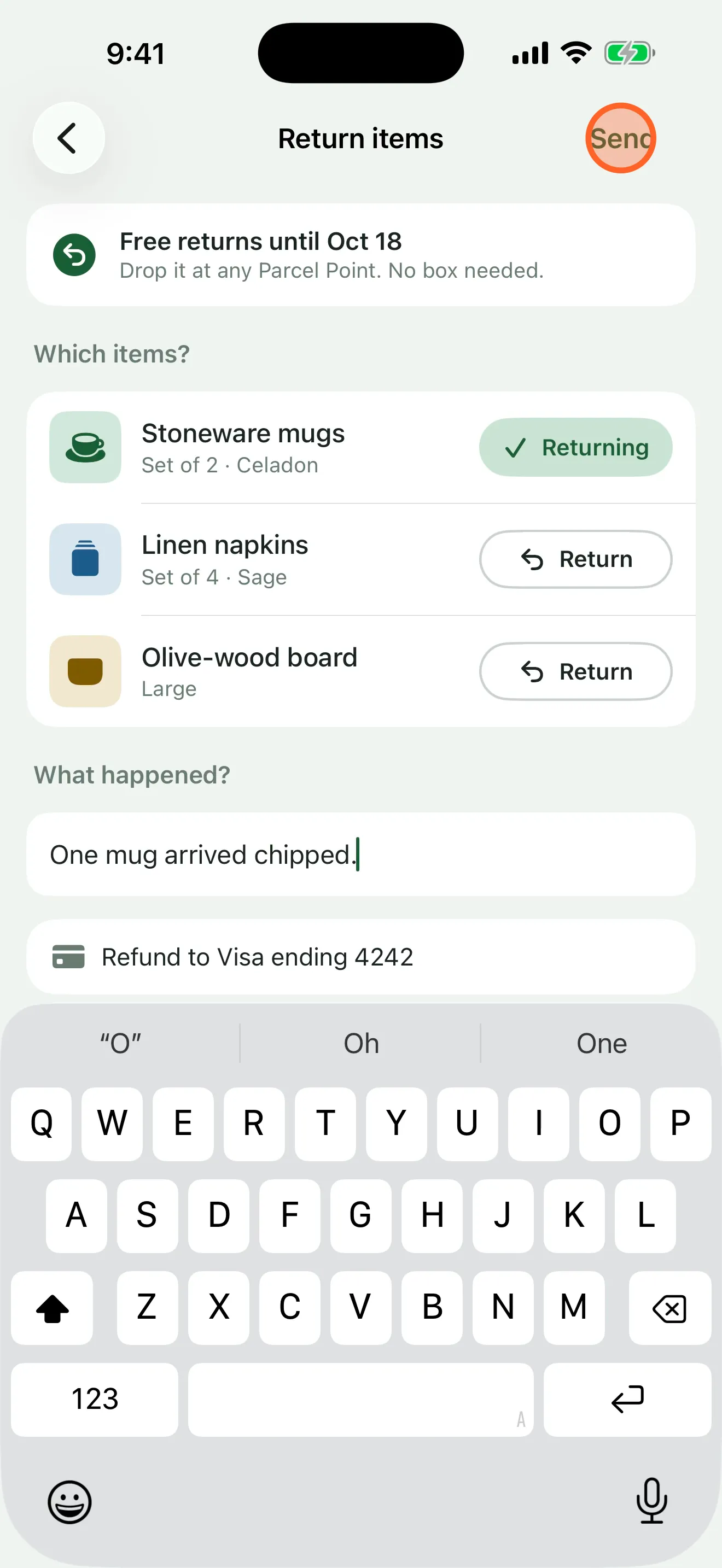
  5. Step 5: “One mug arrived chipped.” typed into the note, the keyboard up, and a tap marker on Send.

    5Tap Send

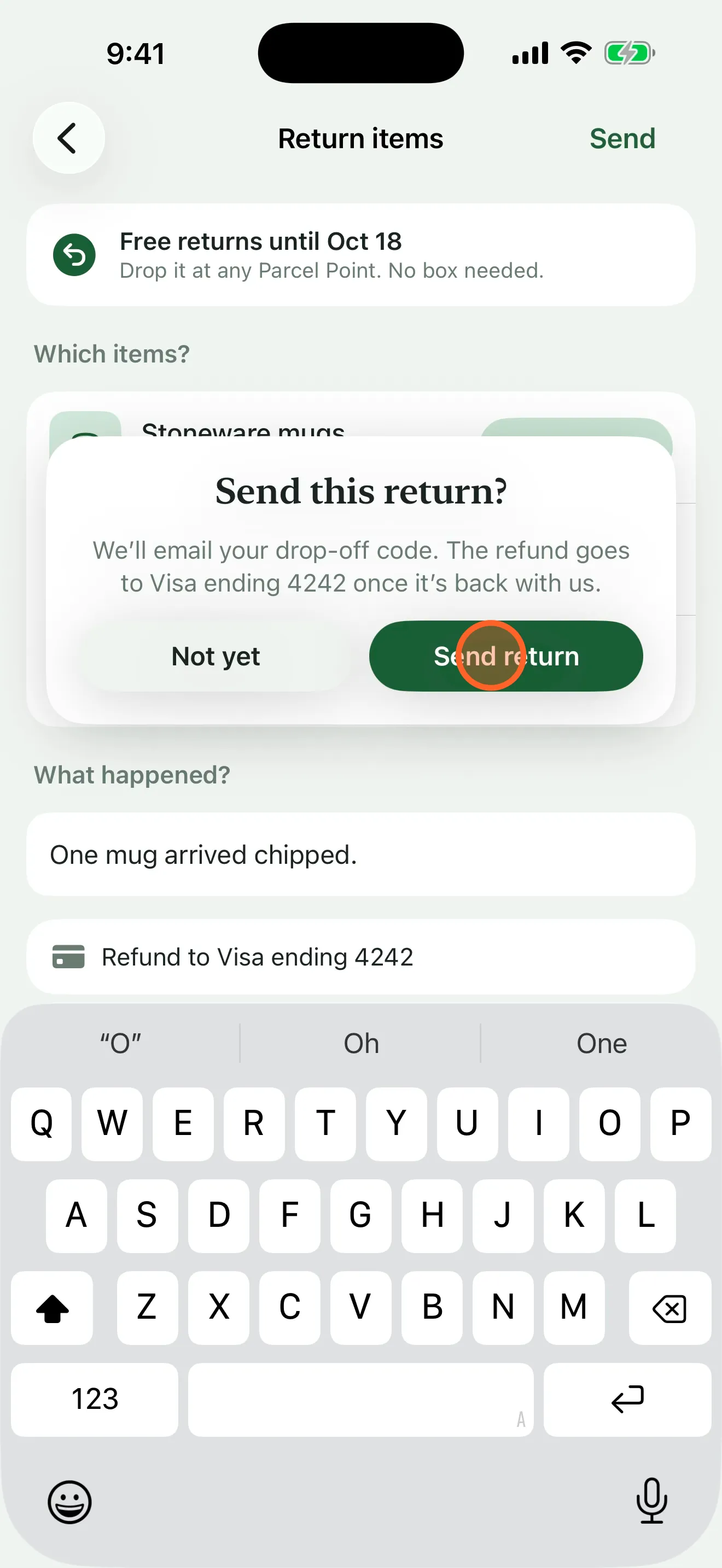
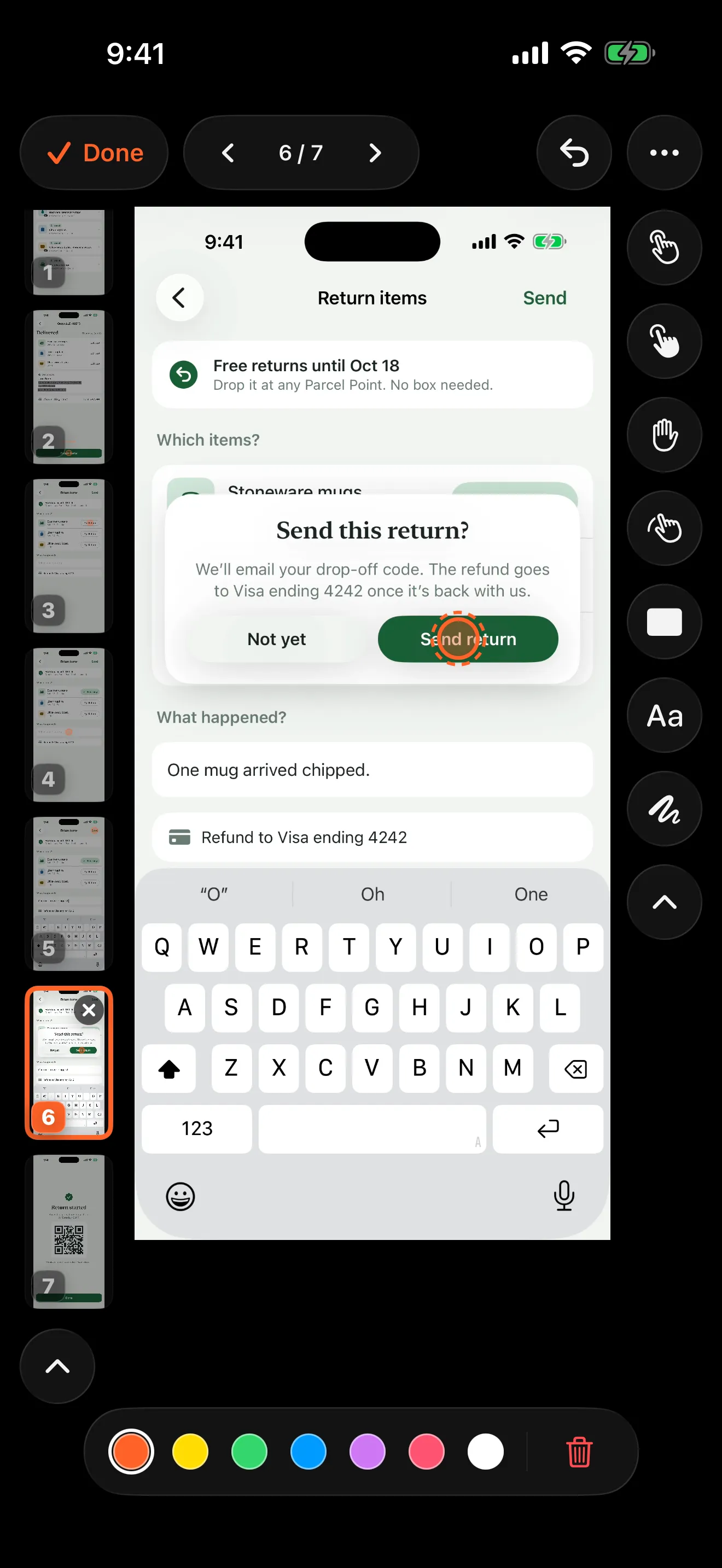
  6. Step 6: a card asking “Send this return?”, with a tap marker on Send return.

    6Confirm the return

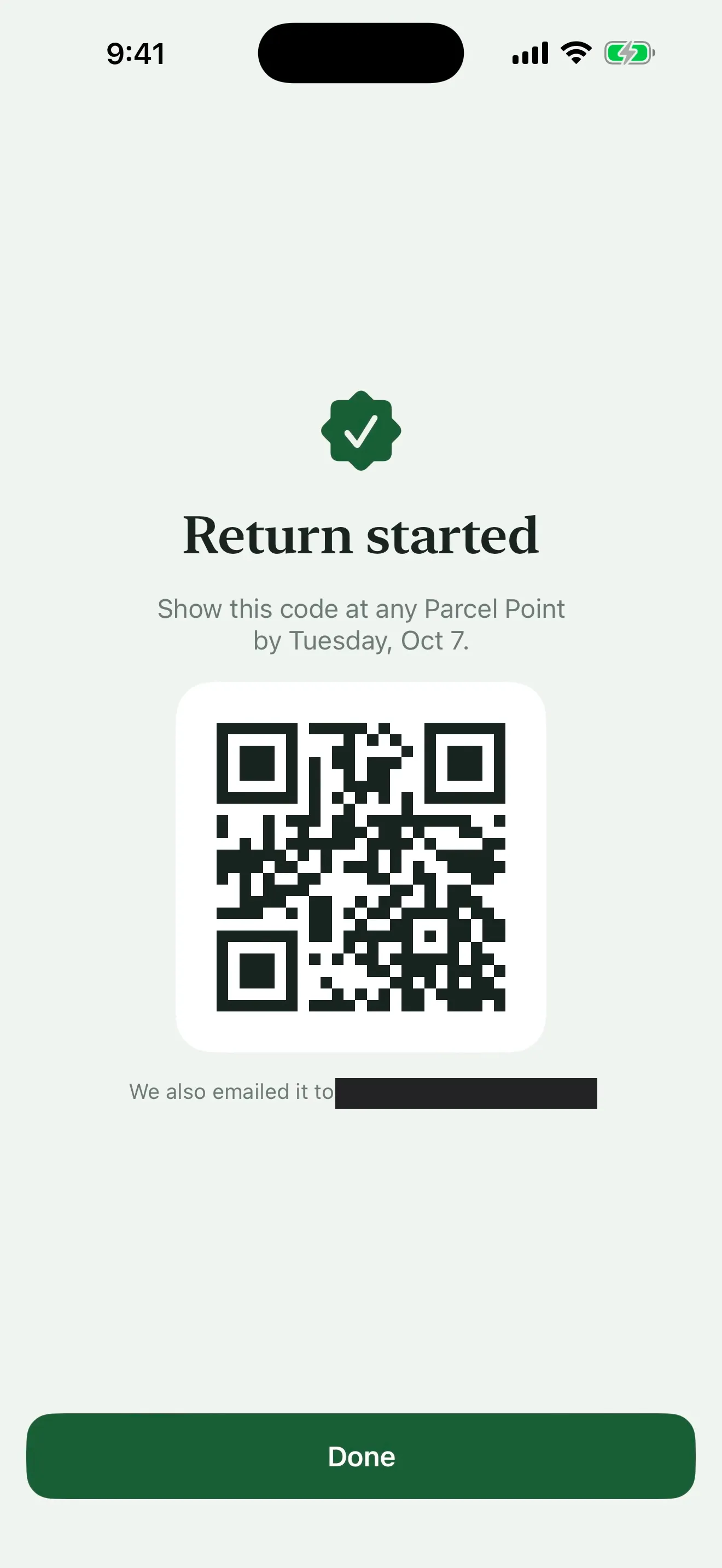
  7. Step 7: “Return started” with a drop-off QR code, and the email address it was sent to covered by a redaction.

    7Show the code at drop-off

Seven steps found in a 33-second screen recording, with the tap marks, a label and the redactions baked in. Walkthru finds the steps and what happened on each one; the captions are the author’s own words.

Sound familiar?

You’ve explained this before. You’ll explain it again.

“How do I return something?”

The same question, the fifth time this week. Record the answer once and send everyone the same clear guide.

“The help article still shows last year’s screens.”

Swap in the screens that changed and export a fresh PDF, or Markdown for the docs site.

“Can you just show me how?”

For a new hire, a client or a parent: every step, with the spot to tap marked, to follow at their own pace.

How it works

From recording to guide in four steps.

1

Pick your screen recording

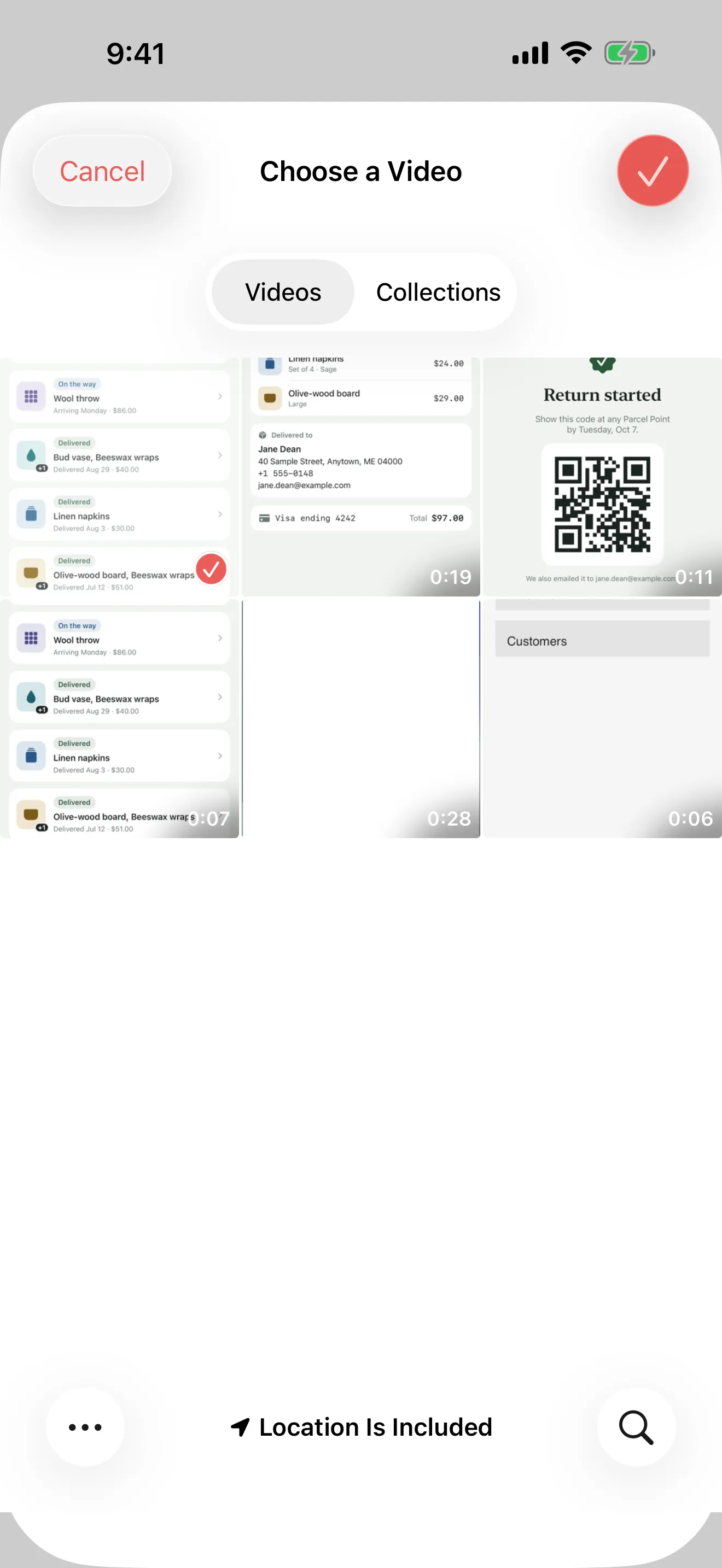
Record the flow with the built-in screen recorder, or with Walkthru’s, then pick it. No recording? Hand over a set of screenshots and each one becomes a step. Nothing is uploaded, whichever way it comes in.

Walkthru's Choose a Video screen, showing the Photos library with the return-flow recording selected.
Pick it from Photos. Full quality, no re-encode.
The recording behind the guide above. 33 seconds of screen time, sped up so you don’t have to wait.
  • Record in Walkthru — start the system recorder from inside the app, and the file lands straight in Walkthru, never in your Photos.
  • Or import a recording you already made with Control Center — pick it from Photos, or on iPad, drag the file onto the library.
  • Or skip the recording — pick a set of screenshots and each one becomes a step, in the order you picked them.
2

It splits it into steps

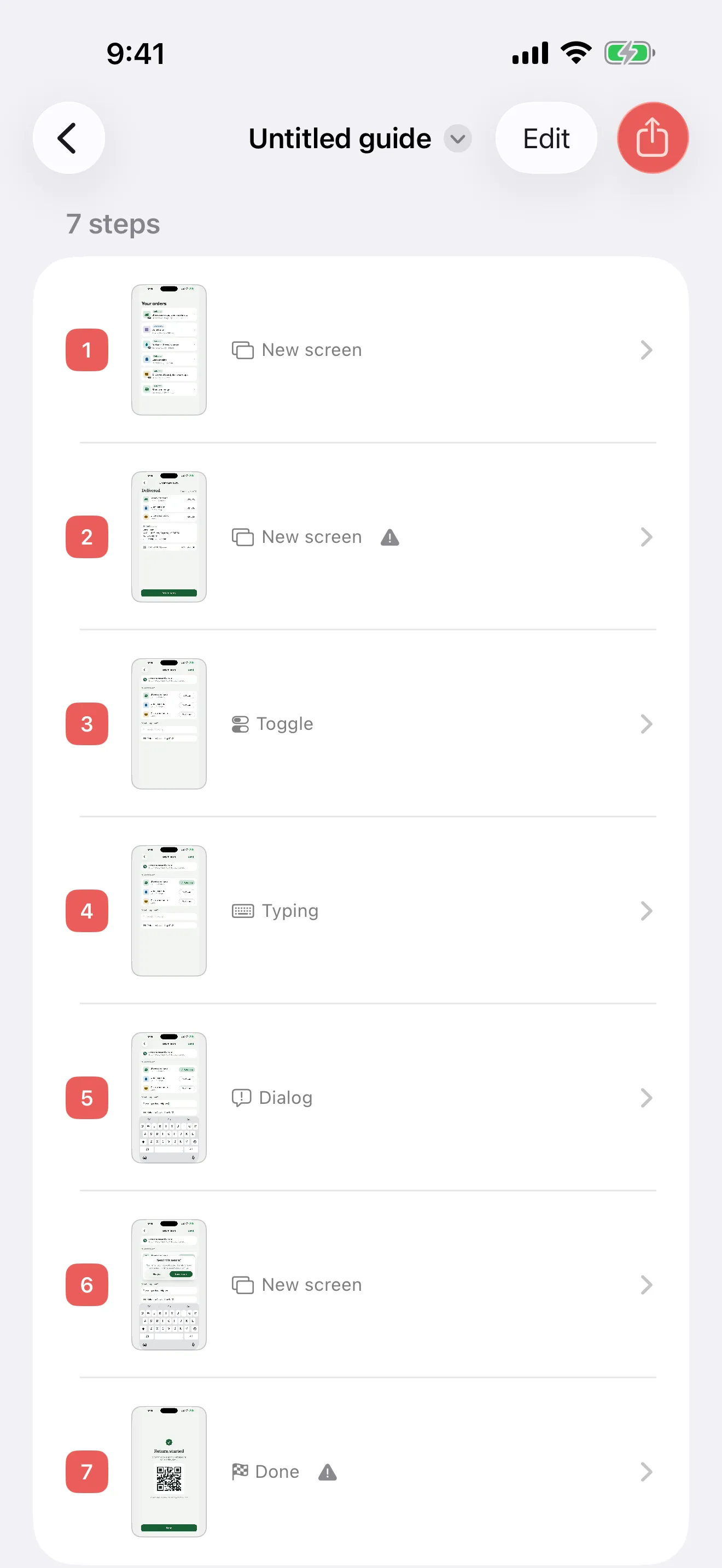
Walkthru watches the recording frame by frame and cuts it wherever the screen actually changed. Each step gets a full-size screenshot and a label for what happened on it: a new screen, a toggle, typing, a dialog.

Walkthru's new guide: 7 steps, each with its number, a thumbnail of the screen, and a label — New screen, New screen, Toggle, Typing, Dialog, New screen, Done.

Seven steps, numbered, each labelled with what happened on it.

  • 1New screen0:02
  • 2New screen0:07
  • 3Toggle0:11
  • 4Typing0:14
  • 5Dialog0:20
  • 6New screen0:25
  • 7Done0:30

Cut from the 33-second recording at the moment each screen settled. A keyboard still sliding up or a screen still animating into place never becomes a step of its own. Screenshots skip this stage: picking them in order isthe split.

3

Annotate, label, redact

Tap the picture to show where the reader should tap. Add a few words where they help. Walkthru spots the email addresses, phone numbers, addresses and card numbers on screen and offers to cover them — offered, never applied on its own.

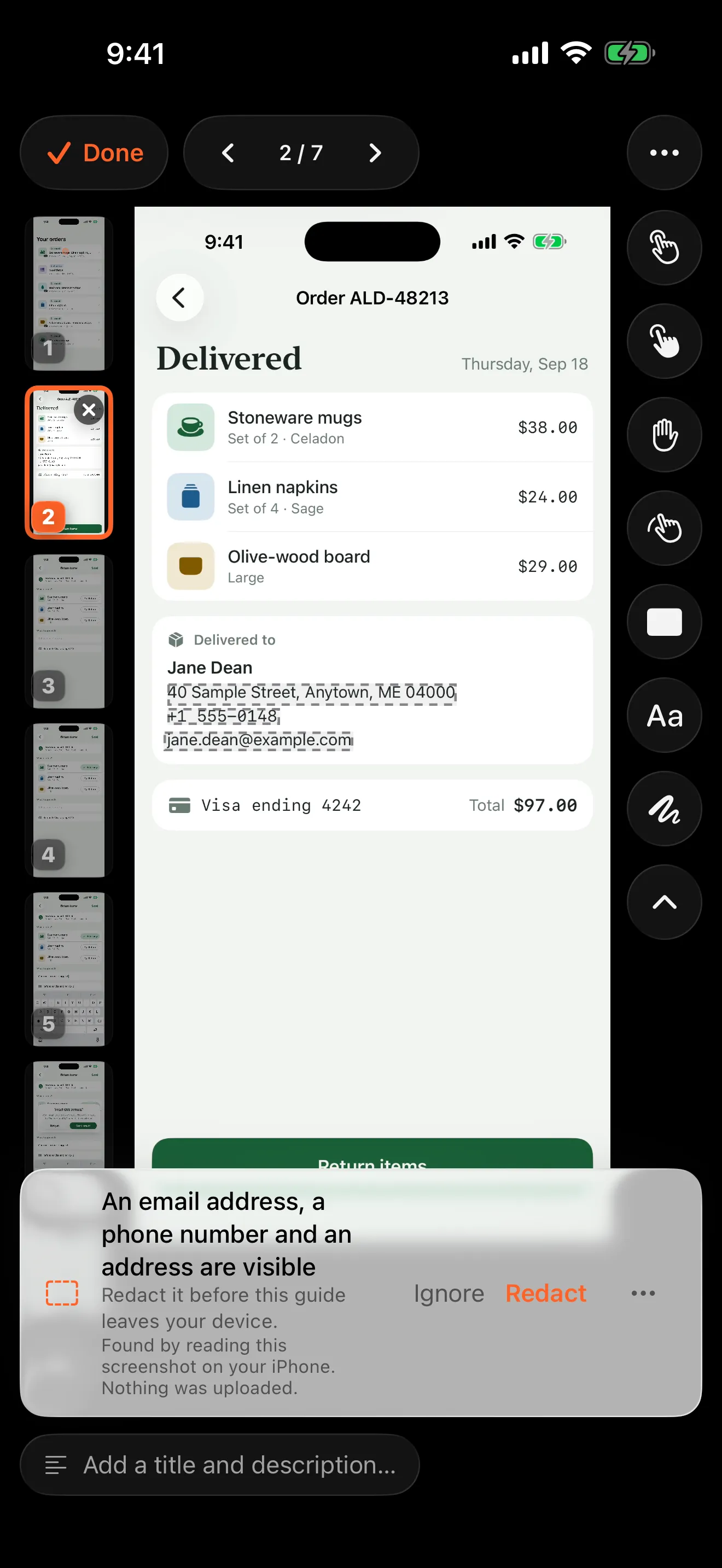
Walkthru's editor on step 2: the delivery address, phone number and email outlined, and a card reading: an email address, a phone number and an address are visible. Redact it before this guide leaves your device.
It reads the screen on your phone and says what it found — here, an email address, a phone number and a postal address.
Step 2: the order’s details, with the delivery address, phone number and email covered by solid black redactions, a “Start here” label and a tap marker on the Return items button.
One tap, and they’re gone from the file. Then a marker on the button and a label saying where to start. Filled in solid, not blurred.
  • Show the tap. Tap, double-tap, press-and-hold or swipe markers, in any of seven colours, and freehand drawing.
  • Say it in your words. Text labels on the picture and a caption for every step. A label’s words can be fixed later without losing its colour, size or position.
  • Cover what’s private. Walkthru offers to redact emails, phone numbers, postal addresses, card numbers, IBANs, SSNs, routing numbers, wallet addresses and likely secrets — and to repeat a redaction on every step at once.

Offered, never applied on its own. A redaction is filled in solid rather than blurred, because blurred or pixelated text can sometimes be recovered, and a solid fill leaves nothing to recover.

4

Export a PDF guide

One numbered step per page, ready to send to a customer or drop in the help centre. Or export Markdown for a docs site, images for a support reply, or the whole guide as a video. Markers and redactions are baked into every file.

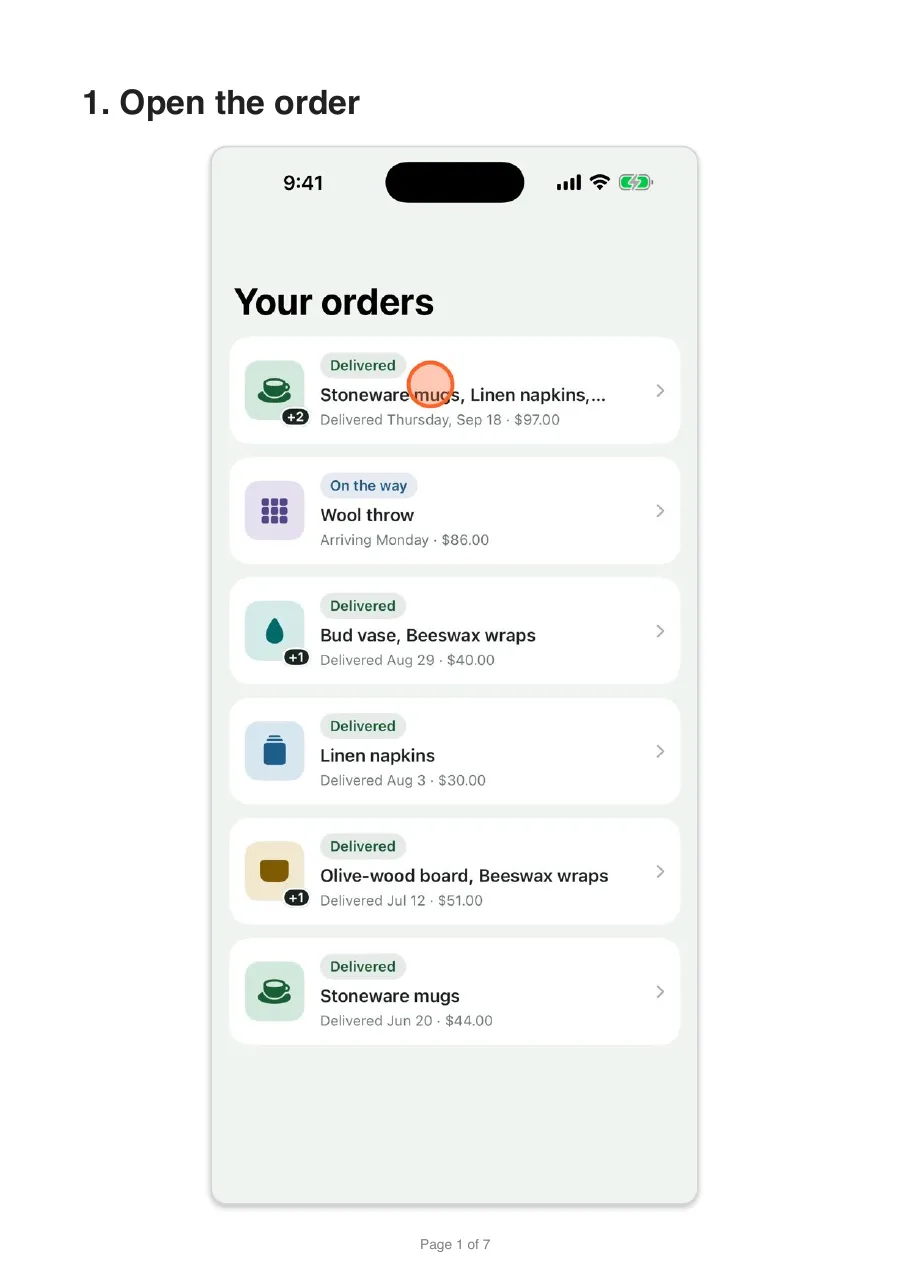
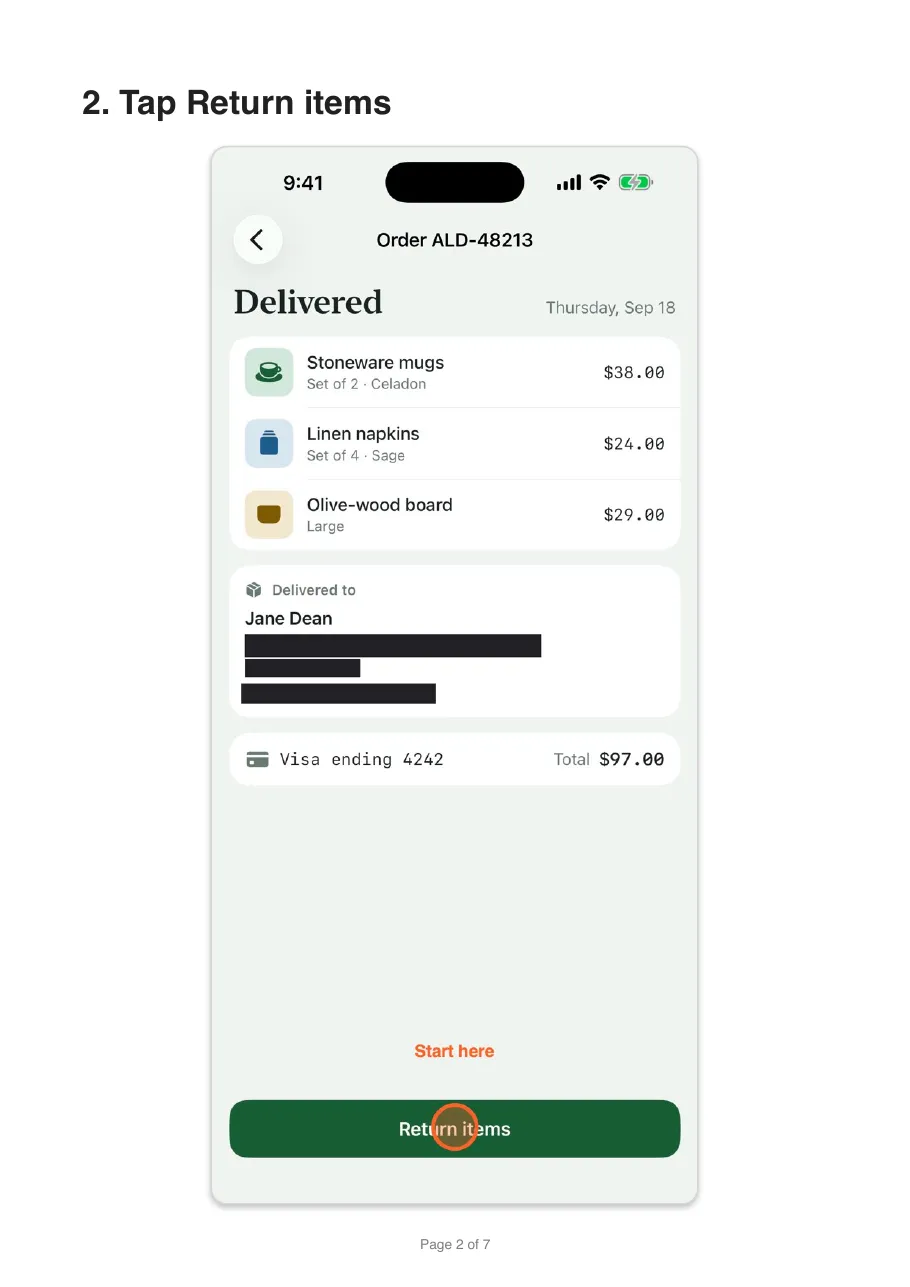
Page 1 of the exported PDF: “1. Open the order”, with the orders screenshot and its tap marker.Page 2 of the exported PDF: “2. Tap Return items”, with the order screenshot, its redactions, the Start here label and the tap marker.
The first two pages of the PDF Walkthru exported from this guide — the real file, one numbered step per page.

PDF

One step per page, compact, or a checklist. Letter or A4.

Markdown

A zipped bundle with relative image references.

Images

Annotated PNGs to Photos or Files.

Video

An MP4 of the guide — the footage cut to the steps, or each screenshot held while its markers land. Optional narration.

The same guide, exported as video — markers landing, redactions in place. This one is the real file, playing.

Why this exists

The other tools were built to watch a desktop.

Scribe, Tango, iorad and Guidde document desktop flows by watching your clicks — a thing iOS does not let any app do. On a phone, Scribe works from screenshots you upload, and Tango does not capture phone workflows at all. Walkthru takes the other route: it reads the recording itself, on the phone that made it.

How Walkthru compares to Scribe and Tango on mobile →

The app

All of it happens here.

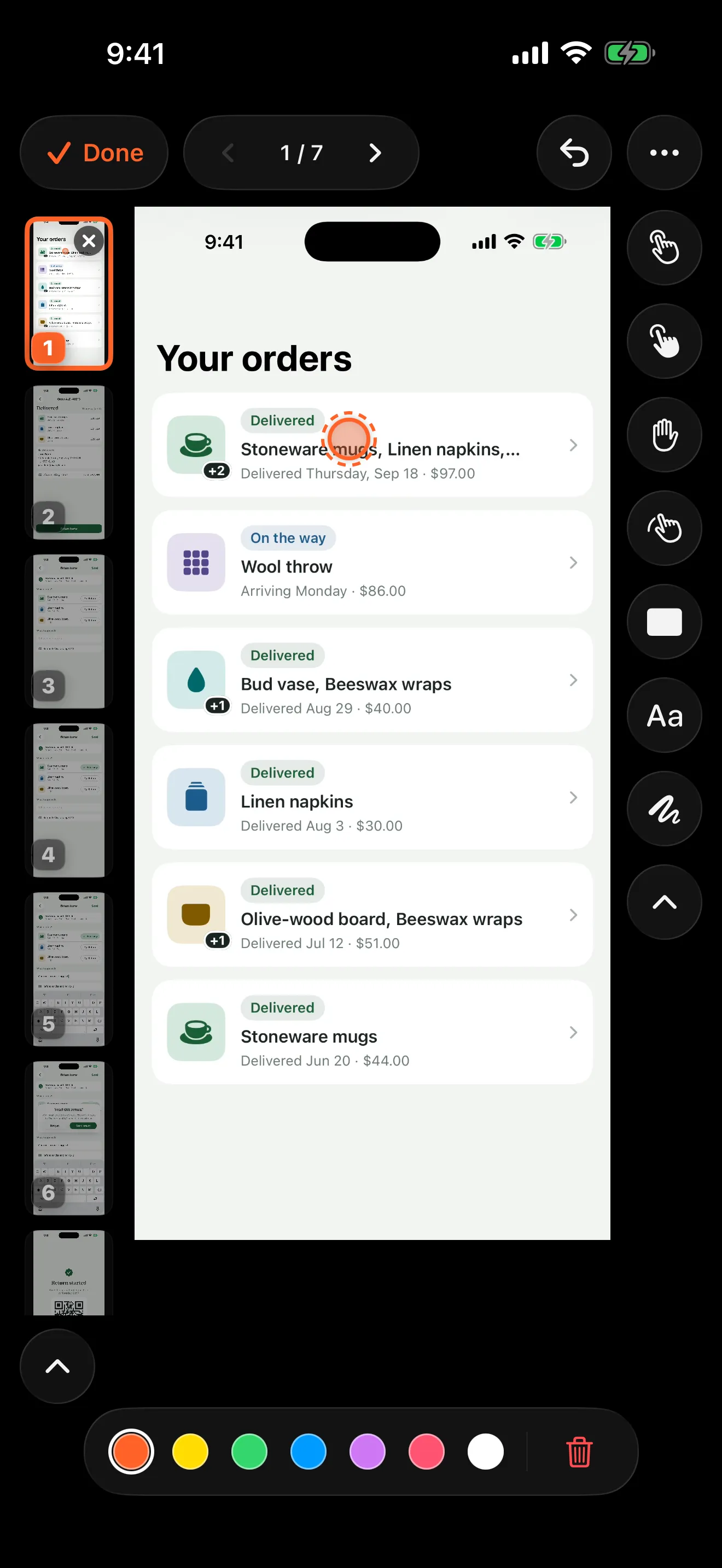
Steps down the left, tools down the right, the picture in the middle. Screenshots from an iPhone — not mock-ups.

Privacy

There is nowhere to send it.

A screen recording contains whatever you had on screen. Walkthru’s answer to that is structural rather than promissory: no accounts, no servers, no per-frame upload, no cloud model. Detection, text reading, redaction and export all run on your device.

You do not have to take this on trust. Turn on Airplane Mode and use the app — every feature behaves identically, because none of them ever needed the network.

Read the full privacy policy →

Data collected
None. The App Store privacy label reads “Data Not Collected”.
Account
There isn’t one. Nothing to sign up for, nothing to sign in to.
Processing
On device. Step detection, on-screen text reading and PII detection all run locally.
Redaction
Opaque fill, rendered before the crop and baked into the export. The pixels underneath are gone in the exported file.
Analytics
None. No SDKs, no crash reporters, no identifiers.

Pricing

Free to use. Pay to drop the watermark.

The whole app is free: every export format, every step, as many guides as you like. What you pay for is a clean export and no daily limit.

Free

Everything, marked

  • PDF, Markdown, image and video export
  • No cap on steps or guides
  • A watermark on every export
  • Three exports a day

Pro · $9.99 once

No watermark, no limit

  • Clean exports, forever
  • Unlimited exports
  • One purchase, not a subscription

Documenting one flow this week? $2.99 buys a seven-day pass instead. It does not renew.

Questions

What people ask first.

Do I need a Mac?

No. Walkthru records, finds the steps, annotates and exports on the iPhone or iPad itself. The best-known documentation tools were built to watch desktop clicks: on a phone, Scribe works from screenshots you upload, and Tango does not capture phone workflows at all. Walkthru keeps the whole job on the device.

Where does my recording go?

Nowhere. Walkthru has no account system and no server, so there is no address it could send a recording to. Step detection, text reading, redaction and export all run on the device. You can check this: turn on Airplane Mode and the app works exactly the same.

Can I import screenshots instead of a recording?

Yes. Pick a set of screenshots and each one becomes a step, numbered in the order you picked them. There is no step detection on that route, because the order you pick is the split, but Walkthru still reads each picture for private details to offer to cover. Everything after import is the same: captions, markers, text labels, redactions, crops and every export format, including video. You can also add screenshots to a recorded guide later, or replace any step’s picture from Photos.

When would I use screenshots rather than a recording?

When a recording is not something you can go back and make. A support agent works from the stills a customer sent; a designer works from exported mockups; plenty of flows were only ever captured as screenshots. If you can still record the flow, record it — Walkthru then finds the step boundaries for you, and the video export can use the real footage.

Does Walkthru write the step captions for me?

No, and that is deliberate. Walkthru decides where the steps are and what kind of action each one is, because both are measurable from the pixels. It does not guess at the wording. A plausible but wrong caption costs more to notice and correct than an empty one costs to write, so imported steps arrive untitled.

What does Walkthru cost?

The download is free, with every format and no cap on steps or guides. The free tier allows three exports a day, each with a watermark. Pro removes both: $9.99 once, or $2.99 for a seven-day pass.

Does the seven-day pass renew automatically?

No. It is a non-renewing purchase, so it simply ends after seven days and never charges you again. Buy another when you need one; they stack.

Can Walkthru record other apps?

Yes. It captures the whole device screen, other apps and the Home Screen included, using the system broadcast picker — so iOS shows the recording indicator the entire time. You can also record with Control Center first and import the file afterwards.

What can I export?

A PDF in one of three layouts, a Markdown bundle with relative image references, a sequence of annotated PNGs, or an MP4 video of the guide with the markers landing in time. Every format works whichever way the guide was built: with a recording behind it the video cuts to the real footage, and with only screenshots it holds each step on its picture while the markers animate over it. Markers, crops and redactions are baked into every file, not stored as removable overlays.

Does Walkthru need an internet connection?

No. There is no account to sign in to and no server to reach, so nothing in the app uses the network. Step detection, text reading, redaction and export all work with Airplane Mode on. The only network activity is Apple’s: processing a purchase, or Photos downloading a recording that is stored only in iCloud.

Is there a Mac, Android or web version?

No. Walkthru is an iOS app for iPhone and iPad, and there is no web version because there is no server — processing happens on the device. For desktop flows, the browser-based tools cover that side; on the Mac, StepGrab does local, on-device guides. Walkthru is the one that does it on the phone.

Does it work on iPad?

Yes. Walkthru is a universal app for iPhone and iPad. On iPad the guide library sits in a sidebar and the editor lays out the steps, the picture and the tools side by side. You can place markers with Apple Pencil, drag a recording onto the library to import it, and use keyboard shortcuts. It requires iOS 26 or iPadOS 26.
Document the flow while you still remember it.

Read the guidesComing to the App Store

iOS 26 or later. iPhone and iPad. Free to download.