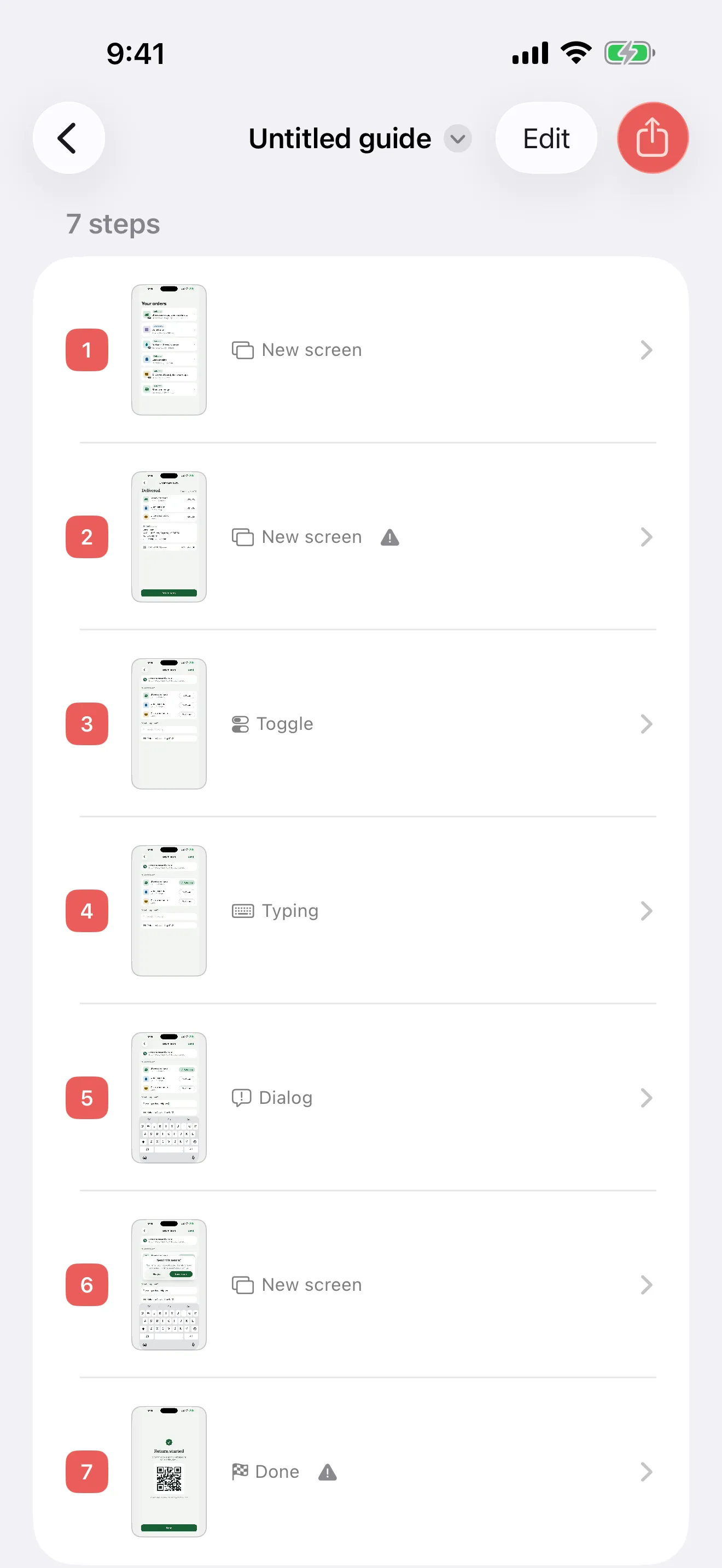
How do you write a standard operating procedure for a process done on a phone?
A reusable SOP template for a task done in an iPhone or iPad app, with a worked example, a checklist for new staff and a simple way to test it.

Walkthru team
A mobile SOP has the same parts as any procedure: a purpose, a scope, prerequisites, numbered steps and an owner with a review date. What makes it work on a phone is a screenshot of each important screen with the button to tap marked. Walkthru builds those steps from one screen recording on an iPhone or iPad; you write the instructions, cover private details and export a PDF. Then ask someone new to the task to follow it.
In this article
The parts, and what each one is for
An SOP is a short document with a fixed shape. Each part answers a question the reader has before they act.
- Title: the task, named as a task. Refunding an order in the field app, not Refund procedure v2.
- Purpose: one sentence on why the task exists. It tells readers they have the right document.
- Scope: who it applies to and what it covers, and what it leaves out: full refunds only; partial refunds have their own procedure.
- Prerequisites: access, permissions, app version, anything needed before step one. A procedure that fails at step four for a missing permission loses the reader’s trust.
- Steps: numbered, one action each, written as instructions.
- Owner, version, review date: easy to find, so readers know who checked it and when.
What changes on a phone
Screenshots do more of the work. On a desktop, the window title, menu bar and sidebar help readers find their place, and one screenshot can cover several clicks. A phone screen shows far less. Capture each important state, including dialogs and confirmations, so the reader can recognize the result.
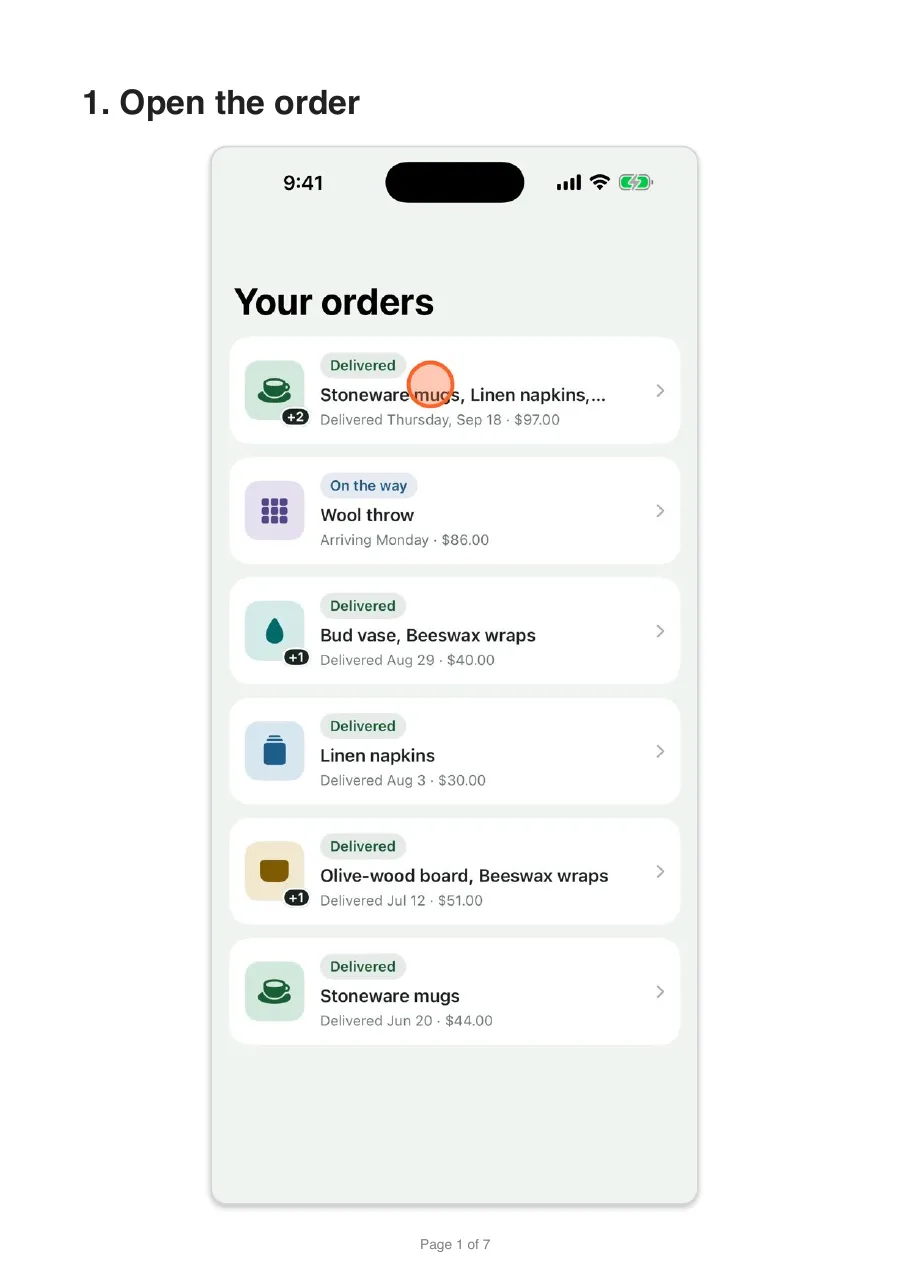
The tap target needs a marker. “Tap the button in the top right” makes the reader search. A marker on the screenshot shows them.
Screens are tall and narrow. A phone screenshot at full width on a Letter page is huge; at a readable size it leaves most of the page empty. Choose a layout built for that shape.
Private data is everywhere. Real screens show names, balances, addresses and account numbers. Check every screenshot before you share, not just the instructions.
The same applies to an iPad app. The screen is bigger, but the reader still needs to know where to tap.
Writing the steps
- Use the imperative. “Tap Refund.” Not “The user taps Refund”, and not “The Refund screen will appear”.
- One action per step. A step with “and then” in it is two steps.
- Name controls exactly as the screen does, with the same capitals. If readers must translate your words into what they see, the step has failed.
- Say what confirms success when it is not obvious. “The status changes to Refunded” tells readers they are on track.
- Put warnings before the step. A caution below the instruction gets read after the irreversible thing is done.
Skip the screenshot marathon
Capturing, arranging, captioning and checking screenshots are separate jobs. A screen recording handles the first two and leaves the rest to the person who knows the task.
Record the task once on the iPhone or iPad. Walkthru cuts the recording wherever the screen changed and gives you one step per screen, each with a full-resolution screenshot. You write the instructions, place the markers, accept the redactions it offers, and export.
If the screenshots already exist, import them instead and each becomes a numbered step. See turning screenshots into a guide.
For an SOP folder, export a PDF guide. Choose from three layouts, including a checklist, on US Letter or A4, with an optional cover page and bookmarks.
For a docs site or a repository, export a Markdown bundle. It holds the step text
in a README, with relative links to the pictures (images/step-1.png and so on), so
an edited instruction shows up as a readable diff. Pictures are named by step number,
though. Inserting a step renames every picture after it, and a re-recorded flow is a
new guide. Review the whole folder after either.
Use section headings to divide the procedure and tip blocks for prerequisites or warnings. They are not numbered as actions.
A mobile app SOP template you can reuse
Fill in the brackets for one task. Add your organization’s own approval fields if it needs them.
Procedure: [task name]
Purpose: [why the task is performed]
Scope: [roles and cases covered; link to different cases]
Owner: [responsible person or team]
Version / last tested / next review: [revision and dates]
Environment: [app, platform, relevant app version and account role]
Before starting: [access, required information and prerequisites]
Caution before a consequential action: [what must be checked]
Procedure: [numbered action, screenshot where needed, expected result]
Exceptions: [specific condition, permitted recovery or escalation]
Completion evidence: [visible result or required record]
Related instructions: [links to adjacent tasks]
For each numbered action, use this smaller pattern:
Action: Tap [exact control name] on [screen].
Check: [what should appear or change].
If it differs: [specific check or who can resolve it].
You write the owner, version and review details into the document or keep them in your document system. Walkthru holds the steps, headings and tips; it does not track approvals, signatures or review dates.
Worked example: a practice request in a field app
An invented example, to show the level of detail. Use your own app’s real labels.
| SOP part | Example entry |
|---|---|
| Purpose | Submit a practice maintenance request so a new worker can learn the process. |
| Scope | Worker accounts in the training environment; no live customer jobs. |
| Prerequisites | Assigned training account and a sample asset named Practice pump. |
| Step | Open Practice pump, tap New request and select the supplied training reason. |
| Pre-submit check | Confirm the training environment and sample asset before submitting. |
| Success | The request appears in the training request list with a reference. |
| Exception | If New request is missing, stop and ask the training owner to check access. |
| Owner/review | Name the responsible team and record when this flow was last tested. |
A screenshot can show where New request lives. Only the text can say whether submitting a live request is allowed, so write that caution down.
When the reader is new to the task
An SOP is often a new hire’s first look at a task. Someone on r/nocode who hires regularly described the alternative: “Same explanations. Same walkthroughs. Same screenshots I send over Slack” (the thread). A good SOP ends that, if you write it for someone who has never done the task.
Teach a task, not a tour. “Here is our field app” gives a new person many screens to remember and nothing to finish. “Find your assigned job and check its address” gives them a reason to open the app and a clear finish. Write one SOP per task and link the next one at the end.
Write down what you take for granted. A new person may lack your permissions, your saved filters or a signed-in account. Before step one, say:
- which app and account role to use, and who gives access if sign-in fails;
- whether the task needs the camera, location or notifications allowed;
- which sample record to practise on, and how to recognize it;
- whether the task changes a real record or is only practice.
Never put a password or sign-in code in the document. Say how to get access instead.
Training staff on an iPad till or booking app? See the iPad POS training guide.
Test the SOP as a procedure, not just a document
Give the finished file to someone who has not done the task, with the account role it assumes. Ask them to say out loud what they are looking for as they go. When they hesitate, stay quiet. Note where they stopped and what they expected to see; those are the steps to rewrite. Test the exception you describe, or check it with the person who handles it.
Keep the current version where your team already looks for procedures. When the screens change, use the maintenance checklist to review the procedure and replace the copies people use.
Related questions
What does an SOP need to contain?
A title naming the task, one sentence on its purpose, a scope saying who and what it covers, any prerequisites, numbered steps written as instructions, and the owner, version and review date. Anything beyond that is your organisation's preference.
How is a mobile SOP different from a desktop one?
Screenshots carry more of the weight. A desktop window has a menu bar, a sidebar and a title to steer by. A phone screen has one column and few landmarks. Add a screenshot and a marker wherever the reader needs help finding a control or recognizing a screen.
How many screenshots does a mobile SOP need?
One for each screen or action that needs a picture to explain it. Not every tap changes the screen, and prerequisites or short tips can be text only. Walkthru lets you add section headings and tip blocks between the action steps.
Should an SOP be a PDF or a web page?
A PDF suits a fixed version that people save or print. Add the owner, version and review date yourself; Walkthru does not add them, and it is not an approval or signature system. Use Markdown or a web page if the procedure changes often and lives near the code or on a docs site.
How do you keep an SOP from going stale?
Give it an owner and a review date, and check it after app updates that touch the task. Replace a single screenshot for a small change. Record the flow again when the steps themselves change.
Can you write a mobile SOP if you cannot record the flow yourself?
Yes, if you have a screenshot of every step. That is common when the writer does not do the task and the screenshots arrive in a ticket or a message thread. Walkthru makes one step per screenshot, in the order you pick them, and everything after that works as it does for a recording.
A little more to explore
Keep reading
Getting started
Make a POS training guide for staff on iPad
Turn your iPad POS into a staff training guide. Record each till task once, mark the buttons, cover customer details and print one step per page.
PDF & exports
Turn iPhone screenshots into a step-by-step guide
Turn iPhone or iPad screenshots into a step-by-step guide. Put them in order, write one clear instruction per step, cover private details and export a PDF.
Getting started
Update screenshots in an iPhone app guide
Keep an iPhone app guide accurate after an app update. Decide what to replace, recheck markers and redactions, and swap out the copies people use.