How do I get screenshots out of an iPhone screen recording?
Save one frame from a screen recording in Photos, or get a full-resolution screenshot of every screen in the recording at once, numbered in order.

Walkthru team
For one frame, open the recording in Photos, pause where you want, tap the More button and choose Save Video Frame as Photo (iOS 27). For a screenshot of every screen in the recording, import it into Walkthru. It cuts the recording wherever the screen changed and settled, and its Step images export saves one full-resolution PNG per screen, numbered in order.
In this article
Get a screenshot of every screen in a recording with Walkthru
Import the recording
In Walkthru, tap Import a recording and choose the screen recording. Walkthru reads it on the iPhone and finds each point where the screen changed and then settled.
Review the screens it found
Delete the ones you do not need, such as a loading screen. If a picture caught the wrong moment, use Replace screenshot to choose another frame from the recording.
Crop, mark or cover if you want to
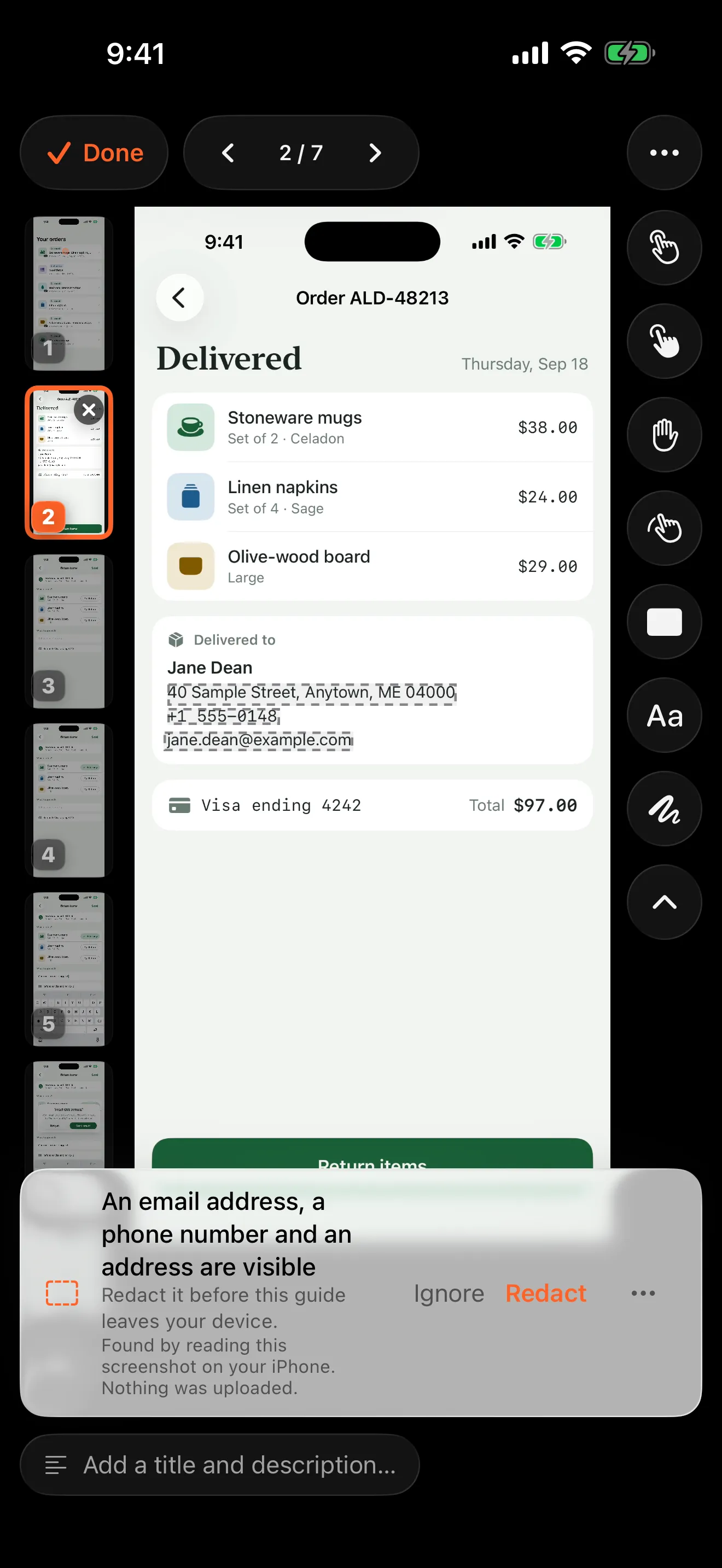
Crop a step, add a tap marker or cover private details. Anything you add is drawn into the exported picture. Leave a step untouched to export a plain screenshot.
Export Step images
Choose Step images. Walkthru saves each step as a PNG named step-1, step-2 and so on, then opens the share sheet, where you can save them to Photos or Files.
One or two frames: use Photos
In iOS 27, Photos can save the frame you paused on (Apple’s instructions):
- Open the screen recording in Photos and play it.
- Pause on the frame you want.
- Tap the More button, then Save Video Frame as Photo.
The picture is saved to your library next to the recording. On earlier versions of iOS, the usual workaround is to pause the video, tap once to hide the player controls, and take an ordinary screenshot.
This is the right tool for a frame or two. For a recording of a whole task, it means scrubbing to every screen by hand and hoping you paused after the animation, not during it.
Every screen at once: let the screen changes decide
A screen recording of an app has a useful shape. The screen moves, then settles, then moves again when you tap. Each settled stretch is one screen you would have screenshotted by hand.
Walkthru finds those stretches on the iPhone. It compares each frame of the recording with the last and cuts where the picture changed and then stopped changing. For each cut, it takes a frame from the middle of the still stretch, so the picture is not caught mid-animation. A 30-second recording of a seven-screen task should give you about seven pictures, not hundreds of frames or one picture every second.
Nothing is uploaded. There is no account, and the recording stays on the phone.
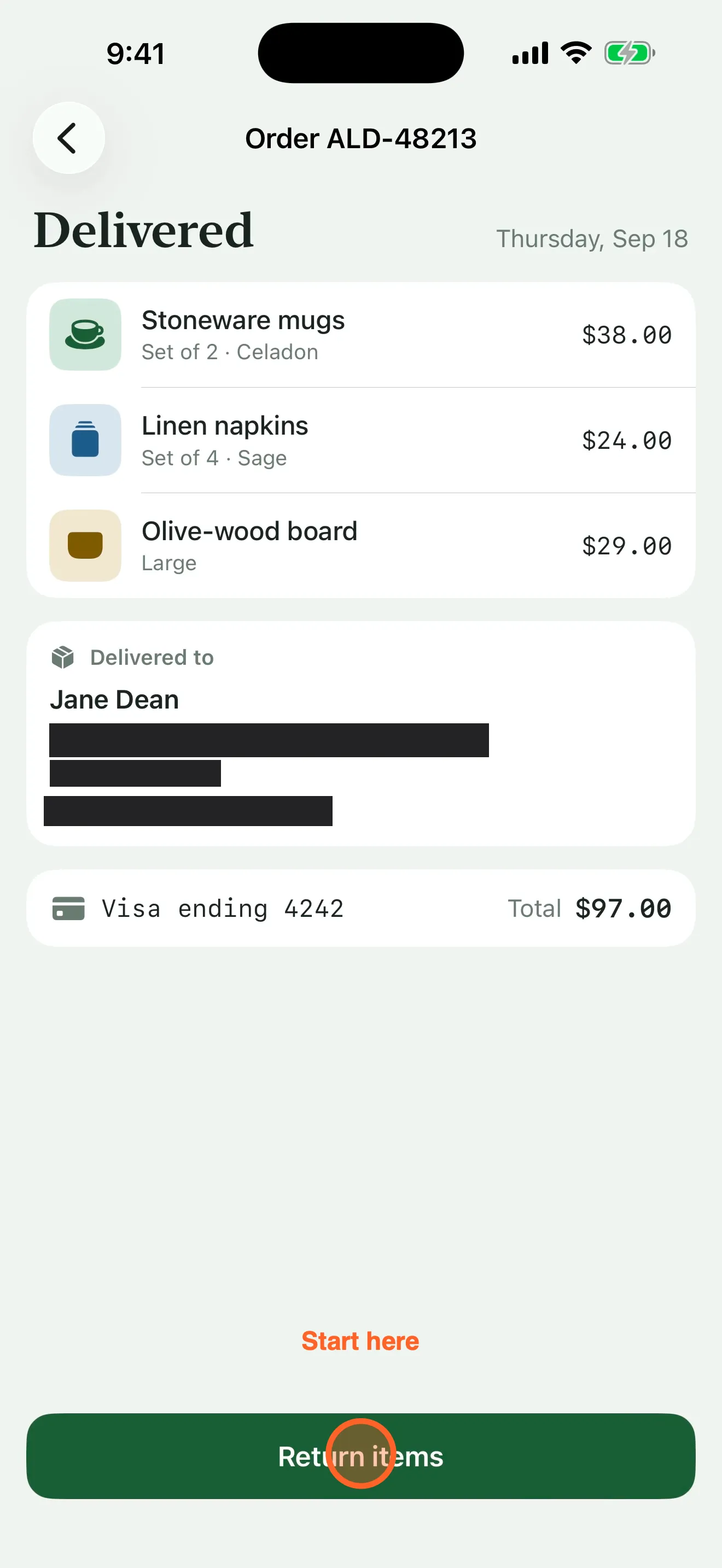
One of the step images Walkthru exported from the site’s 33-second demo recording, at 1320 × 2868 pixels. The tap marker, label and black redactions were added in the editor and drawn into the PNG; a step you leave alone exports as a plain screenshot.
Clean them up before you export
Because the pictures come out of an editor rather than straight from the video, you can fix them first:
- Remove the ones you do not need, such as a spinner that appeared for a second.
- Pick a better frame with Replace screenshot if a keyboard or banner got in the way.
- Add a missing screen with Add Screenshots if you moved past something too quickly, then drag it into place.
- Crop to the part of the screen that matters. The original stays in the guide.
- Cover private details. Walkthru offers to redact email addresses, phone numbers, card numbers and other details it reads on each picture.
If you want more than a folder of pictures
The same steps export as a numbered PDF guide, a Markdown bundle for a docs site or an MP4 video. To add instructions and turn the pictures into a guide, see turning a screen recording into a PDF guide. If you already have the screenshots, start from turning screenshots into a guide.
When a picture comes out wrong
| What you see | What to do |
|---|---|
| A screen is missing | You moved on too quickly for it to settle. Record again with a short pause on each screen, or add a screenshot. |
| Two pictures of the same screen | Something on the screen kept changing, such as a timer or a loading bar. Delete the extra step. |
| A picture is caught mid-animation | Use Replace screenshot and choose a later frame. |
| Small text looks soft | That is video compression. For a picture where every letter must be crisp, take a real screenshot and use Replace from Photos. |
| The recording is black | Some apps block screen recording, and Apple notes this in its screen recording guide. Screenshots of those apps may be blocked too. |
Related questions
Are the screenshots full resolution?
They have the recording's full pixel size, because Walkthru extracts each one from the video file rather than from a preview. A screen recording is compressed video, though, so fine text can look slightly softer than in a screenshot taken with the buttons.
Which frame does Walkthru pick for each screen?
One from the middle of the time the screen stayed still, after the animation into it finished. That avoids the smeared, halfway frames you get by pausing at the wrong moment.
Can Shortcuts do this?
Not with a built-in action. Shortcuts has no action that pulls frames out of a video. Frame-grabber apps can save frames at fixed intervals, which gives you many near-identical pictures to sort through.
Is there a watermark?
On the free tier, yes. Every export carries a Walkthru watermark, and you can export three times a day. One Step images export sends all the pictures at once and counts as one; a share you cancel does not count. A Pro purchase removes the watermark and the limit.
What if the recording is from a Mac or a game?
Walkthru is designed for iPhone screen recordings of apps, where the screen settles between steps. A recording that never stops moving, such as gameplay, is better served by a frame grabber.
A little more to explore
Keep reading
PDF & exports
Turn a screen recording into a PDF guide on iPhone
Turn an iPhone or iPad screen recording into a numbered PDF guide with one screenshot per step. The free manual route, the faster way, and what to check.
PDF & exports
Turn iPhone screenshots into a step-by-step guide
Turn iPhone or iPad screenshots into a step-by-step guide. Put them in order, write one clear instruction per step, cover private details and export a PDF.
Privacy
How to properly redact a screenshot on iPhone
Cover private details with a solid shape and share a flattened copy. The free Markup method on iPhone and iPad, why blur fails, and what to check.