How do you redact private information in an iPhone screenshot?
Cover private details with a solid shape and share a flattened copy. The free Markup method on iPhone and iPad, why blur fails, and what to check.

Walkthru team
Cover private details with a solid, fully opaque shape, then share a flattened copy so the hidden pixels are gone from the file. On iPhone or iPad, Markup does this for one picture: add a shape, give it a solid fill at full opacity, and share it without AirDrop's All Photos Data option. Avoid the highlighter, blur and pixelation. For a set of screenshots, Walkthru offers covers for the sensitive text it finds and bakes the ones you accept into every export.
In this article
Redact and export a screenshot with Walkthru
List everything that has to go
Names, email addresses, phone numbers, account and card numbers, balances, addresses, order references, API keys and QR codes. Check the status bar and any notification banner that appeared mid-capture.
Import the screenshot and cover private details
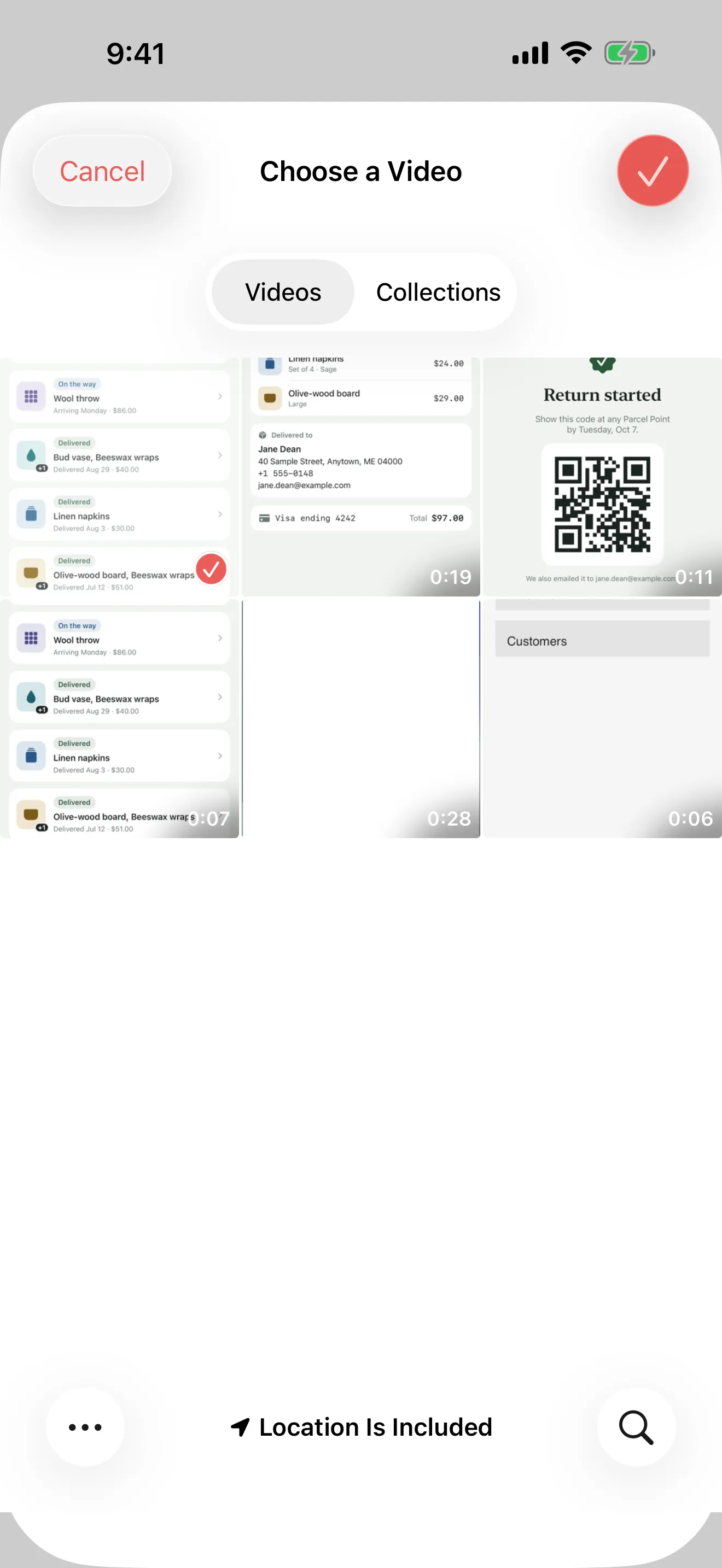
Import the picture into Walkthru and open its step. If a card offers redactions, tap Redact to accept that step's suggestions or Ignore to dismiss them, then delete any box you do not want. Use the Redact tool to draw a box over anything it missed. Make each box larger than the text on every side.
Export the covered picture
Export Step images to get PNGs with the covers drawn into their pixels. PDF guide and Markdown bundle exports use the same covered pictures. The editable guide keeps your originals, so send the exported copy.
Check the exported file
Open the file you are about to send, zoom to 100 percent on each cover, and try to select text over it. If any character shows or can be selected, the redaction failed.
Why blur is not redaction
Blur and pixelation smudge an image, but they can leave clues. Someone can render likely values, apply the same effect and compare the results. Familiar layouts, repeated values and a short list of possibilities make that easier. A 2016 peer-reviewed study showed this against both mosaicing and blurring. Bishop Fox published Unredacter, a tool that recovers pixelated text by exactly this guess-and-compare method.
Recovery works only some of the time. The point is simpler: a solid cover in a flattened image leaves nothing of the original text in those pixels.
The real danger is that a blurred account number looks handled. Nobody checks it again, and the file gets sent.
What actually works
A solid cover, then flatten. A fully opaque rectangle, drawn into the pixels of the file you send. The information is destroyed, rather than hidden.
Three details catch people out:
- Make the box bigger than the text. Letters and their soft edges spill past the obvious outline. A box that stops at the last pixel can leave enough shape to read.
- Flatten before sharing. An editor that keeps shapes on a separate layer has only drawn on top of the original. Export a flattened copy and send that.
- Check the file you actually send, rather than the editor’s preview. Open the exported file, zoom to 100 percent, and try to select text.
The free way: Markup on iPhone or iPad
For one or two pictures, the built-in Markup tool is enough. It can draw a solid box (Apple’s Markup guide):
- Open the screenshot in Photos, tap Edit, then open Markup. Right after taking a screenshot, you can also tap its thumbnail.
- In the Markup toolbar, tap +, then Add Shape, and choose the square.
- Use the toolbar options to give the shape a solid fill colour at full opacity.
- Drag and resize the box so it covers the detail with room to spare. Repeat for every private detail, then tap Done.
- Share the picture as usual. If you use AirDrop, open Options in the share sheet and leave All Photos Data off.
The steps are the same on iPad. With Apple Pencil, you can swipe up from either bottom corner to take a screenshot and mark it up straight away (Apple), and placing the box precisely is easier with the Pencil than with a finger.
Step 5 matters because Photos edits can be undone. Photos keeps your original so you can revert, and Apple’s sharing guide says All Photos Data sends “the original file with edit history”, so the recipient can change it (Apple).
Markup works well for a single picture. It gets slow when the same account number appears on twelve screenshots, and nothing checks what you missed. That is where a tool that reads every picture helps.
What people miss on an app screenshot
Everyone remembers the obvious fields. These are the ones that slip through:
- The status bar: carrier name and, on some devices, a personal hotspot indicator.
- A notification banner that dropped in mid-capture.
- Autofill suggestions above the keyboard, drawn from your own data.
- A tab bar badge count, which can reveal an internal figure.
- Links in a share sheet, which often carry account identifiers.
- QR codes and barcodes, which are machine-readable even at low resolution.
- Charts, where a balance you covered in text may still be plotted.
How Walkthru does it
Walkthru redacts with a drag-a-box tool. Each box is filled solid and drawn into every export. Blur and pixelation are left out on purpose: the exported file should hold the covered result, whatever app opens it.
It works on the screenshots you already have. Import them, accept the redactions, export. A recording is optional, and nothing is uploaded, because there is no server.
It reads each screenshot on the device and offers covers. It looks for email addresses, phone numbers, postal addresses, card numbers, IBANs, US Social Security numbers, ABA routing numbers, crypto wallet addresses, and strings that look like secrets: masked password fields, known API-key prefixes and random-looking tokens. For most values with a checksum, it checks the checksum instead of just the shape: Luhn and IIN for cards, mod-97 for IBANs, the FedACH check for routing numbers, Base58Check and bech32 for Bitcoin-style addresses. Ethereum-style addresses are matched by shape. Fewer false alarms means you keep reading the offers.
It offers; it never applies on its own. Offers appear as dashed outlines, with a card on the step. Redact accepts that step’s offers and Ignore dismisses them. To keep only some, tap Redact, then delete the boxes you don’t need. Nothing reaches an export until you accept it. Walkthru decides what is worth asking about; you decide what is private.
It asks before the riskiest details leave. If you share while a card number, IBAN, Social Security number, routing number, wallet address or likely secret is still unresolved, Walkthru asks first, for example “Share with a card number still visible?”, with Share Anyway or Review.
It can repeat a cover across steps. When the same detail sits in the same place on every screen, such as an account number in a header, Apply to all steps copies the box to the other action steps. It copies the position, not the meaning, so check that each copy still covers the right thing.
What you still check yourself
Detection is a helper, rather than a full privacy check. Walkthru skips personal names, so inspect names, balances, faces, QR codes and notifications yourself. Only the offers you accept become covers.
Review each picture in passes:
- Identity: names, contact details, profile pictures and addresses.
- Access and identifiers: passwords, codes, tokens, links, QR codes and references.
- Context: balances, purchases, notes and notifications the audience can do without.
- Repeats: headers, dialogs and later screenshots that show the same detail again.
Use sample data where you can. If a field must stay visible for the instructions to make sense, capture it with a sample value. A label such as Email address still helps the reader when its contents are covered.
In a video reel, a redacted step holds still on its covered screenshot. Because the picture stays still, a secret has no way to scroll out from under the cover.
The editable guide keeps your original screenshots, and your Photos library and backups keep their own copies. Send the exported file, never the originals or the source recording.
Check the exact file you send
| Output | What to check |
|---|---|
| Image (PNG, JPEG or HEIC) | Open it and inspect the edges of every cover at full size. Look for the same detail elsewhere in the picture. |
| Check every page, including the written steps. Search or select any text that might hold the value. | |
| Markdown bundle | Check the pictures and the written step text; an instruction can repeat a value you covered. |
| Video | Watch and listen to the whole file. A cover on the picture does not remove a secret spoken in the narration. |
Failing to select text does not prove a file is safe; visible pixels can still be read. And covering a picture does nothing about text you typed into an instruction. Check both.
If the screen changes later
Recheck every cover after you replace a screenshot. A saved box may now sit beside the private value instead of on top of it. Apply to all steps copies positions; it does not follow an email address that moved when the keyboard opened.
Use the guide update checklist for replacements.
Related questions
Is blurring a screenshot safe?
Not for sensitive text. Blur can keep enough pattern for someone to work out what was underneath, especially when the font, layout or likely values are known. Not every blur can be reversed, but a solid cover is the safe choice.
Is pixelation safe?
Not for sensitive text. Pixelation keeps block-level clues about the original, and candidate values can be pixelated the same way and compared. Use a solid cover drawn into a new image instead.
Is the highlighter in iOS Markup safe for redaction?
No. The highlighter is see-through, so text can show through, especially after someone raises the brightness or contrast. Use Markup's Add Shape with a solid fill colour at full opacity. On a PDF, Markup places shapes on top of the page, and the text underneath can stay selectable.
Can the person I send it to undo a Markup redaction?
Yes, if you send the edit history. Photos keeps your original so you can revert an edit, and AirDrop's All Photos Data option sends the original file with its edit history. Leave that option off, or send an exported copy, and check the file that arrives.
Does cropping count as redaction?
Only in a newly rendered image, and even then it is no substitute for covering the detail. An editable original can keep the cropped area. Check the exact file you export, and never send the source or its edit history.
How does Walkthru handle redaction?
It fills each redacted area with a solid colour and draws it into the exported picture, before any crop. Blur and pixelation are not offered. The protection is in the exported pixels; the editable guide keeps the original.
Can I redact screenshots I already have, without recording anything?
Yes. Import them into Walkthru and each screenshot becomes a step. It reads every picture on the device and offers to cover each email address, phone number, postal address, card number, IBAN, Social Security number, routing number, wallet address and likely secret it finds. Redact accepts a step's offers and Ignore dismisses them. Accepted covers are drawn into the exported PNGs, PDF or Markdown bundle. Apply to all steps copies a cover to the same position on the other action steps, so check every picture afterward.
A little more to explore
Keep reading
PDF & exports
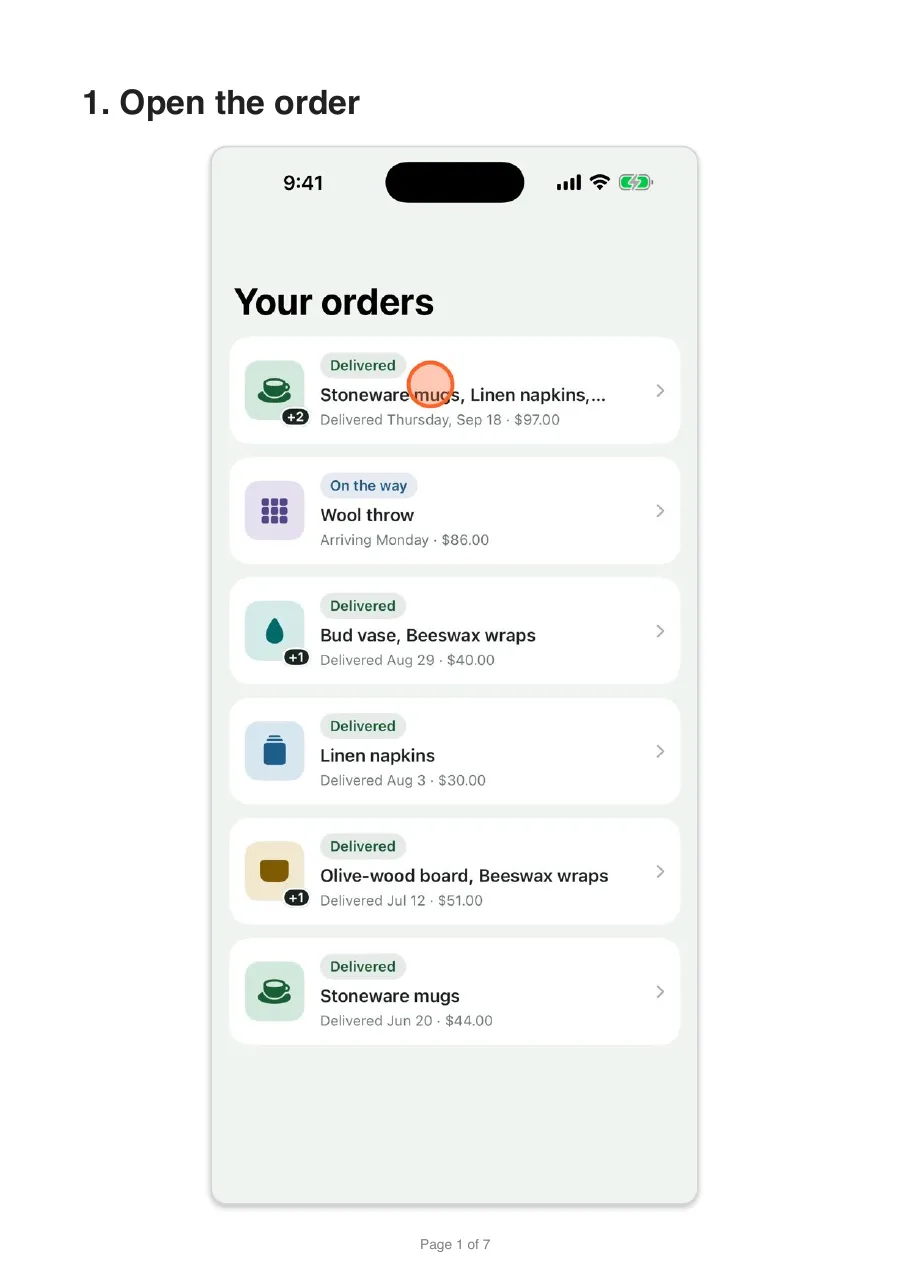
Turn iPhone screenshots into a step-by-step guide
Turn iPhone or iPad screenshots into a step-by-step guide. Put them in order, write one clear instruction per step, cover private details and export a PDF.
Getting started
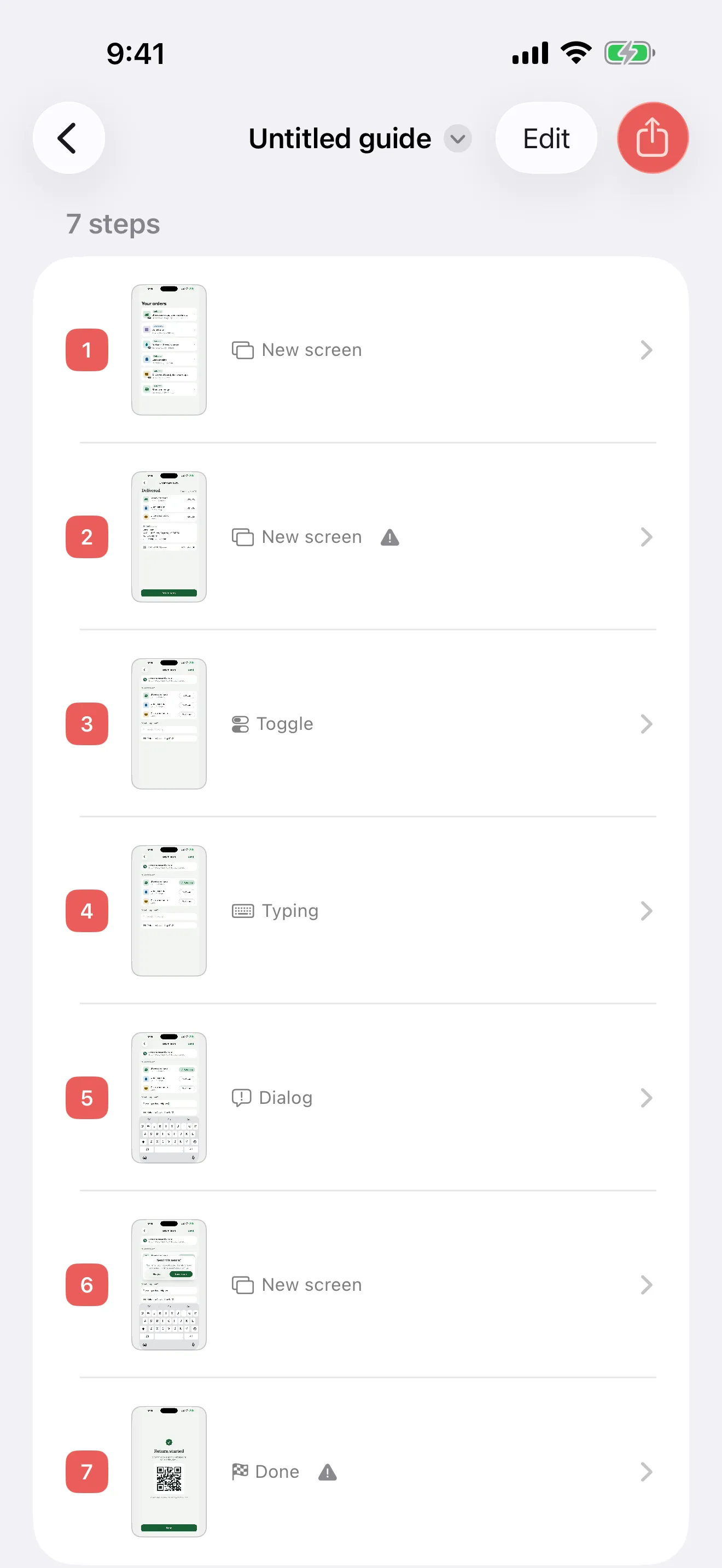
Update screenshots in an iPhone app guide
Keep an iPhone app guide accurate after an app update. Decide what to replace, recheck markers and redactions, and swap out the copies people use.
Comparisons
A Scribe or Tango alternative for iPhone and iPad
Compare Scribe's mobile route, Tango's capture limits and Walkthru, which turns an iPhone or iPad screen recording into a guide on the device.