How do I make an iPhone or iPad cheat sheet for an elderly parent?
Make printed iPhone or iPad instructions for a senior from their own screens. Pick the tasks they ask about, record them, mark each tap and print them.

Walkthru team
Pick the three or four tasks your parent keeps asking about and record each one on their own iPhone or iPad. Turn each recording into a short guide: one screenshot per step, a circle on the button to tap and one plain sentence. Print it one step per page and keep it by the device. Walkthru does the splitting, markers and PDF on an iPhone or iPad. The free route is screenshots, Markup circles and a printed document.
In this article
Make a printed iPhone or iPad cheat sheet for one task
List the tasks they ask about
Write down the last few things they called you about, such as starting a FaceTime call or sending a photo. Make one short guide per task.
Record the task on their iPhone
Silence notifications, open Control Center and tap the Screen Recording button. Do the task slowly, pausing on each screen, then stop the recording. Using their phone means the screens match what they will see.
Turn the recording into steps
AirDrop the recording to your iPhone and import it into Walkthru, which cuts it into one screenshot per screen. Delete any step that only shows a loading screen.
Mark each tap and write one sentence
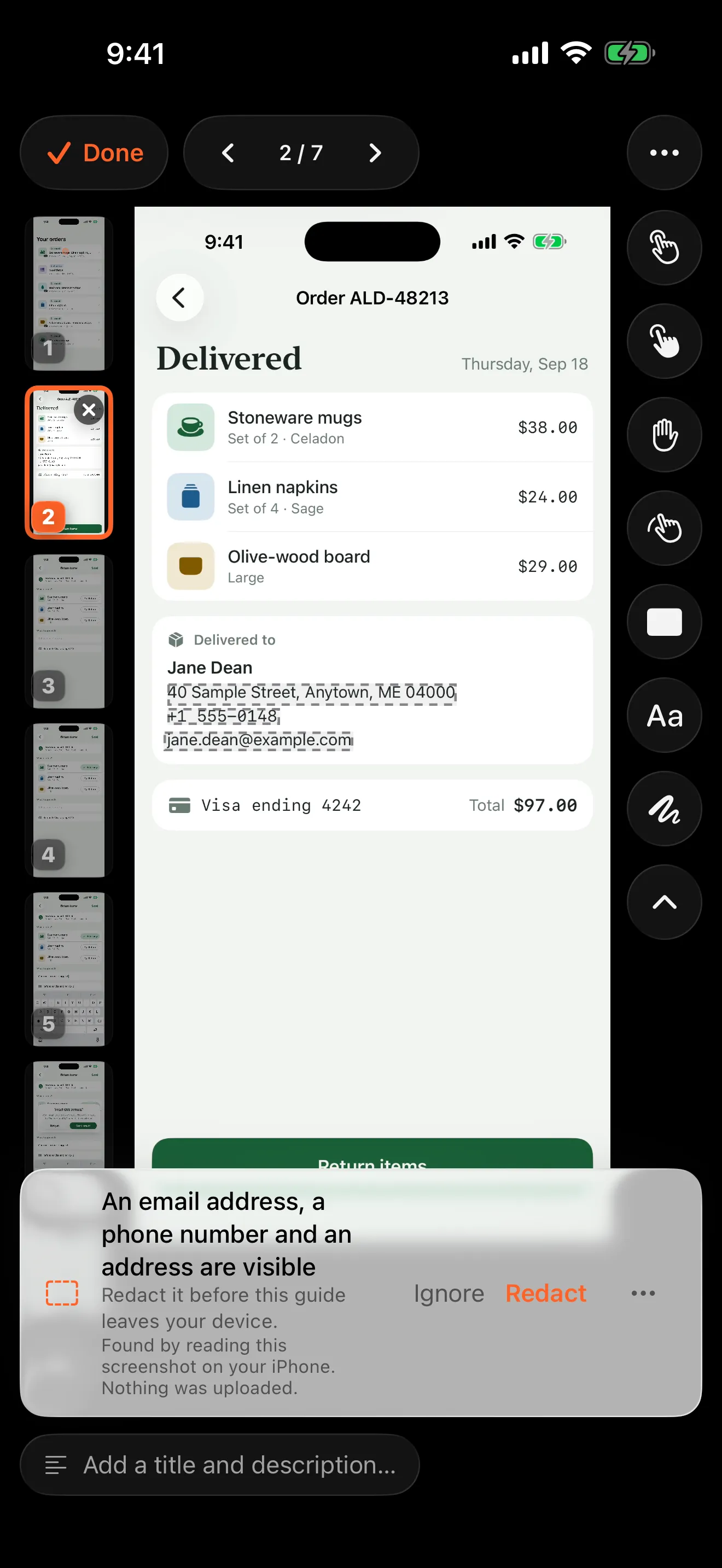
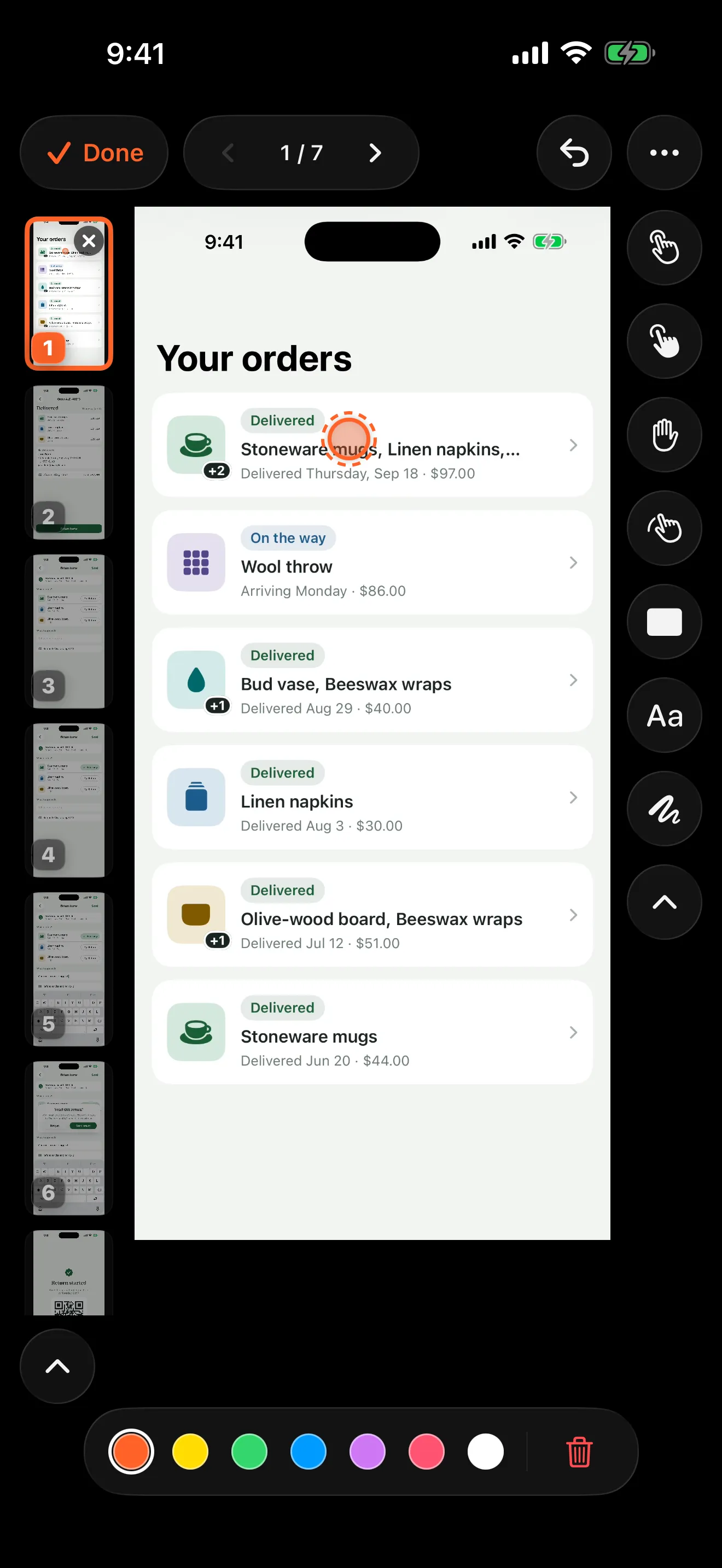
Place a tap marker on the button to press. Write the instruction as the step's title, using the words on the button: 'Tap FaceTime'. Add what they will see next if it helps.
Cover private details, print and test
Redact phone numbers and messages. Export a PDF guide with one step per page and print it. Then watch your parent follow it once, without helping, and fix the step where they hesitate.
Why a cheat sheet made from their own phone works
Printed iPhone guides for seniors exist, from books to one-page cheat sheets. They show a generic iPhone. Your parent’s phone has their wallpaper, their apps in their places and their text size. The closer the picture is to what they see, the less they have to translate.
It is also what people end up making by hand. A social worker asking on Reddit for an iPhone cheat sheet for an older client got this answer from someone who had done it for a relative: they “took screen shots, printed out pictures, circled relevant app/area and had arrows when appropriate”, wrote instructions for each picture, and “made a little book organized by general task”.
That is the right format. What follows makes it faster to build and easier to keep up to date.
Choose tasks, not features
Do not try to explain the whole phone. List the tasks your parent actually asks about, and make one short guide for each:
| Task | Where it starts | They are finished when |
|---|---|---|
| Call a grandchild on FaceTime | Home Screen | Their face appears on the screen |
| Answer a video call | The incoming call screen | They can see the caller |
| Send a photo to the family group | Photos | The photo appears in the chat |
| Make the text bigger | Settings | The words on the screen are larger |
Keep each guide to the steps that task needs. A four-page guide they finish is worth more than a twenty-page manual they put in a drawer.
Record the task on their iPhone
A screen recording captures every screen along the way, so you do not have to remember to take each screenshot.
- Turn on Do Not Disturb, so a message or banner does not appear halfway through.
- Open Control Center and tap the Screen Recording button (Apple’s instructions).
- Do the task slowly. Pause for a second on each new screen.
- Stop the recording. It is saved in Photos.
If you are not with them, they can record it while you talk them through it on another phone, and send you the recording.
Turn the recording into a printed guide
AirDrop or message the recording to your iPhone and import it into Walkthru. It cuts the recording into one screenshot per screen. Then, for each step:
- Delete the steps they do not need, such as a loading screen.
- Place a marker on the button. Tap, press-and-hold and swipe markers show what kind of touch it is. A swipe marker is useful for “swipe up from the bottom”.
- Write one instruction as the step’s title. Use the words printed on the button, and describe it if it has no words: “Tap the green button with the white phone”.
- Add a short label on the picture if they need a starting point, such as “Start here”.
- Cover anything private. Walkthru offers to redact phone numbers, email addresses and other details it finds; accept those and cover any message text yourself.
Export a PDF guide with the one step per page layout. It prints the largest screenshot and puts each step’s title above it in large bold type. Add a cover page with the task’s name, then print it from the share sheet.
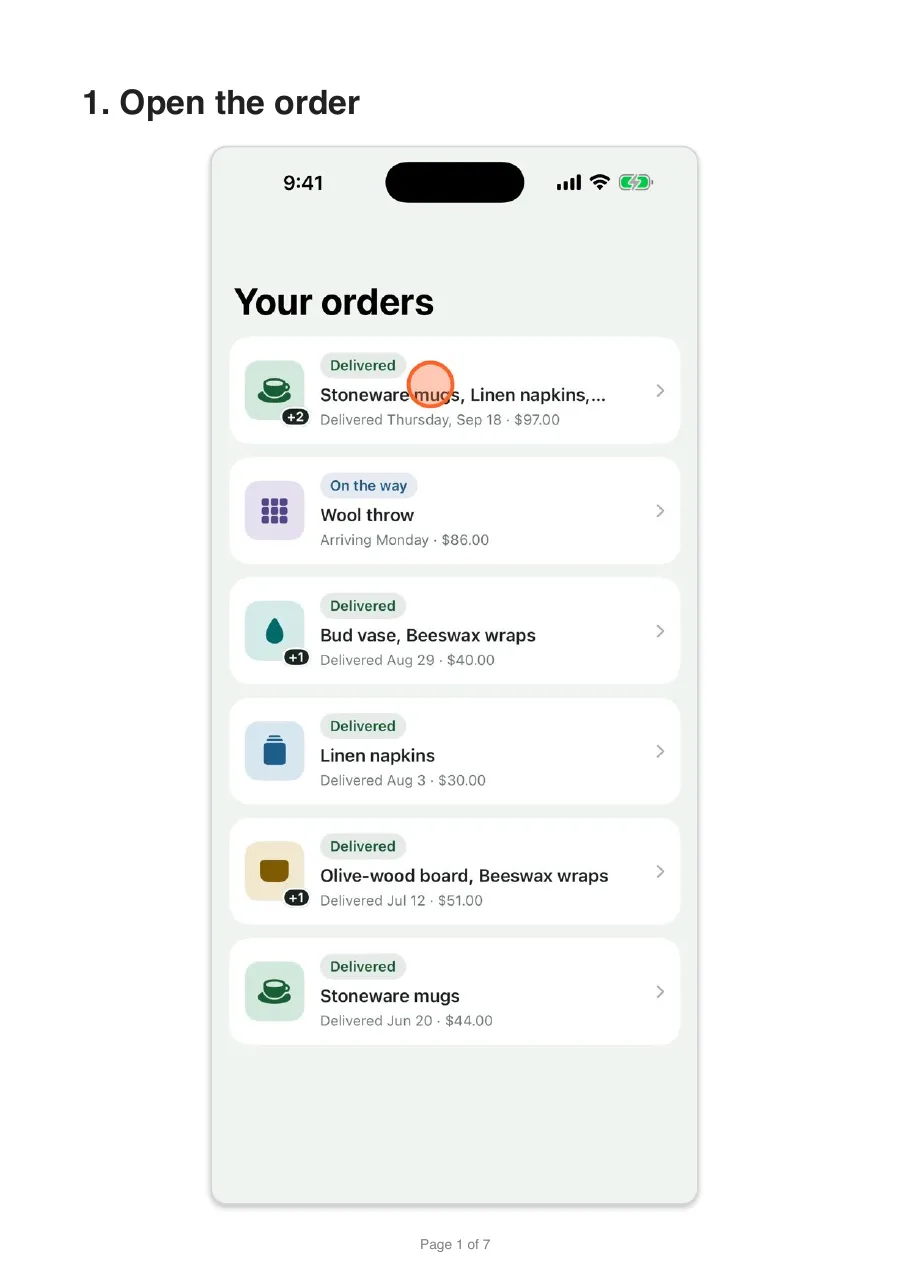
A real page from a Walkthru PDF export of the site’s demo task. A printed cheat sheet uses the same layout.
For a quick answer instead of a printout, export Step images and send the pictures in Messages.
Write for the person who will read it
- One action per page. “Tap FaceTime” is one page. “Tap FaceTime, then pick Anna” is two.
- Say what they will see next. “You will hear it ringing” tells them it worked.
- Name the button, not just its colour. Colours look different in bright light and to older eyes. The word on the button stays the same.
- Tell them what to do if the screen looks different. “If you see something else, stop and call me” is a better last line than nothing.
- Put the task’s name in large type on the cover, so they can find the right guide in a folder.
Then test it. Hand it over, say nothing, and watch. Where they hesitate is the page to rewrite.
If your parent uses an iPad
Many older people prefer an iPad for the bigger screen. As one r/ipad poster put it, “an iPad is great to use basically as an iPhone with a big screen” (r/ipad). Everything above works the same way on an iPad, with a few differences to write down:
- Record on their iPad, from Control Center in the top-right corner, and import the recording into Walkthru on the iPad itself, or send it to your own device.
- Check for a Home button. On an iPad with a Home button, “press the Home button” takes them back to the start. On one without, it is “swipe up from the bottom edge”. Write the one their iPad uses.
- Record it the way they hold it. If the iPad lives upright in a stand, record it upright; if it sits sideways in a keyboard case, record it sideways. The PDF keeps each screenshot’s shape.
- Use the bigger screen for bigger pictures. One step per page makes an iPad screenshot large and readable on paper.
Apple’s Assistive Access for iPad works like the iPhone version, with larger buttons and fewer apps.
Add a page for fake virus warnings
One page belongs in every cheat sheet, and it is not a task. Scam pop-ups that claim the device is infected are a constant worry. In an r/AgingParents thread about tech support for seniors, one reply described “the number of alerts my mother shows me from her iPhone, telling her that the phone is infected” (r/AgingParents).
Make that page plain and firm: “If a message says your iPhone or iPad has a virus, or asks you to call a number, do not tap anything in it. Close it and call me.” Put your number on it.
Pair it with the other help that exists
A cheat sheet is not a lesson. Libraries, senior centres and Apple Stores run classes for learning the phone, and the Reddit thread above recommends them first. The cheat sheet is what stays by the phone afterwards.
If the phone itself is the obstacle, Apple’s Assistive Access gives the iPhone a simpler layout with larger buttons and fewer apps. Set it up before you record, because it changes what every screen looks like.
Keep it current
An iOS update can move a button. When a page stops matching the phone, record that task again, or replace the one screenshot that changed in the editable guide, and reprint that guide. Write the date on the cover, so you both know which copy is newest. See updating a guide after the screens change for the details.
Related questions
Should I record on my phone or theirs?
Theirs, when you can. Their home screen, app layout and text size are what they will compare the pictures with. If you record on your own iPhone, check that the screens look the same on theirs before you print.
Can I make one without an app?
Yes. Take a screenshot of each screen (side button and volume up, or side button and Home button on older models), open it in Markup and draw a circle around the button. Paste the pictures into a document, write one large instruction under each, and print it. It takes longer, but it works.
How big should the text be?
As big as the page allows, and short. In Walkthru's one-step-per-page PDF layout, each step's title prints in large bold type above the screenshot, so put the instruction there and keep the smaller body text for a second, optional line.
Is there a simpler iPhone mode for seniors?
Yes. Apple's Assistive Access replaces the usual interface with larger buttons and a smaller set of apps. It changes what the screens look like, so set it up first and make the cheat sheet afterwards.
Will the printed guide have a watermark?
On the free tier, yes: every export carries a Walkthru watermark, and there is a limit of three exports a day. A Pro purchase removes both.
What happens when their iPhone updates?
Most updates leave simple tasks alone. When one moves a button, record that task again or replace the one screenshot that changed, and print the page again. Write the date on the cover so you can tell which copy is current.
A little more to explore
Keep reading
PDF & exports
Turn iPhone screenshots into a step-by-step guide
Turn iPhone or iPad screenshots into a step-by-step guide. Put them in order, write one clear instruction per step, cover private details and export a PDF.
Getting started
How to show taps in an iPhone screen recording
iPhone screen recordings hide your taps. Add tap markers afterwards in Walkthru, or try an AssistiveTouch custom gesture while you record.
Privacy
How to properly redact a screenshot on iPhone
Cover private details with a solid shape and share a flattened copy. The free Markup method on iPhone and iPad, why blur fails, and what to check.