Is there a Scribe or Tango alternative for iPhone and iPad?
Compare Scribe's mobile route, Tango's capture limits and Walkthru, which turns an iPhone or iPad screen recording into a guide on the device.

Walkthru team
Walkthru turns an iPhone or iPad screen recording, or a set of screenshots, into a step-by-step guide on the device, with no account and no upload. It finds the steps in a recording; you write the instructions and place the markers. Scribe's help centre says Pro and Enterprise users can create Scribes on mobile, while Tango's FAQ says it does not capture workflows on phones or tablets.
In this article
Start with the workflow you need
Scribe and Tango watch desktop clicks. Walkthru reads an iPhone or iPad screen recording. Those start from different information. Walkthru sees each screen change, but the control you touched and what you meant stay invisible to it. So its steps arrive without written instructions, and you place the tap markers.
That trade suits you if you want to make the guide on the device and keep the processing there. If you want a shared online workspace, it is a different kind of tool.
What the official mobile guidance says
Checked on September 27, 2026. Vendor features and plans change.
| Tool | Mobile workflow, per the source | Check before choosing |
|---|---|---|
| Scribe | Its help page supports mobile creation for Pro and Enterprise users and says it works differently from computer capture. Scribe’s 2023 announcement describes taking screenshots on the phone, uploading them, letting Scribe order them and adding click targets by hand | The current mobile route, your plan, and how much of each guide you assemble by hand |
| Tango | Its FAQ says phone and tablet workflow capture is not supported. Its suggested workaround is uploading phone screenshots on a desktop | Capturing a new workflow is different from viewing an existing guide |
| Walkthru | Imports an iPhone or iPad recording and finds the steps on the device, or makes one step per screenshot | You write the instructions and place the markers; the result is an exported file |
Sources: Scribe’s mobile creation documentation and Tango’s mobile FAQ.
What people ask for in a Scribe alternative
The same requests keep coming up in documentation threads from IT teams and managed service providers:
- Export to both PDF and Markdown. “Markdown + PDF = freedom; if it can’t export both, it’s a lock-in trap,” as one r/msp reply put it.
- Pay once, not per seat. A r/sysadmin post asks for a pay-once guide tool because “every single guide software… are monthly subscriptions”.
- Keep sensitive material off the cloud. One-time, local tools such as Folge get recommended for exactly that reason.
- Capture beyond the browser. A r/smallbusiness question notes that Scribe “seems to only focus on recordings of your laptops”.
Walkthru answers all four for iPhone and iPad tasks: PDF, Markdown, image and video exports; no account; and Pro as a one-time purchase, or a non-renewing seven-day pass. The free tier watermarks exports. For desktop work, look elsewhere: Walkthru captures iPhone and iPad screens only.
How Walkthru works
- Record the task with Control Center or Walkthru’s Record this device option.
- Import the recording. Walkthru finds the steps and gives each one a screenshot and a label for the kind of change, such as a new screen, typing or a dialog.
- Write the instruction, add tap markers or text labels, and cover anything private.
- Export a PDF guide, a Markdown bundle, Step images or a Video reel.
Already have screenshots? Import them instead, and each becomes a step. See turning screenshots into a guide.
Nothing leaves the phone
Screen recordings of real work carry real data: customer names, order numbers, messages. Cloud documentation tools upload that to build the guide. Walkthru does the step detection, text recognition, redaction and export on the iPhone or iPad itself. There is no account and no upload service. The whole app works in Airplane Mode, and its App Store privacy label reads Data Not Collected.
“On the device” covers the processing. Other copies of the file need their own check:
| Stage | What to check |
|---|---|
| Import | A recording kept only in iCloud Photos has to download before Walkthru can open it (Apple on storage optimization). |
| Editing | Original pictures stay in the editable guide; redactions are drawn into exports. |
| Storage | Your Photos library and device backups keep their own copies of the recording. |
| Sharing | An export goes wherever you send it, and that service’s rules apply from there. |
What Walkthru does not replace
Walkthru does not write instructions, host guides behind a shareable link, manage team permissions, report who viewed a guide or capture desktop clicks. If those matter most, choose a workspace built for them. If you need to turn a phone or tablet recording into instructions you can save or send, start with the recording-to-PDF guide.
Which workflow fits your task?
Start with what you need to hand over. An annotated file you can save, email or add to a help centre suits a local tool. One hosted link with team editing, permissions or view reports needs a publishing platform, so judge its capture method as well.
| Your question | What to check |
|---|---|
| “Can I document a task inside an iPhone or iPad app?” | The current mobile route, using that exact app and account role. |
| “Can I use screenshots from a support ticket?” | Ordered import, editing the instructions, and replacing a single picture. |
| “Will it tell me what I tapped?” | Whether it records touches or clicks, or finds screen changes and leaves markers to you. |
| “Can colleagues update the same live guide?” | Shared editing and hosting. Exported files give you neither. |
| “Can I keep processing on the device?” | Where capture, analysis, storage and delivery each happen. |
The site lists Walkthru as coming soon. Check availability and pricing before you plan a team workflow around it.
Try the same task in each tool
Pick a short task with a starting screen, a text field or a choice, and a confirmation. Use sample data. Make the same guide in each tool and send it to someone new to the task.
Note every manual job: choosing frames, writing instructions, placing markers, hiding private data and fixing the layout. Then change one screenshot and see how easily you can update the copy people already have. That small test shows what a polished first export can hide.
In Walkthru, you write the instructions, place the markers and review the steps it found. When the app changes, you replace published copies yourself.
For repeat support questions, see sending a guide as a support reply. To choose between a file and a demonstration, compare screenshot guides and video tutorials.
Related questions
Can I create a Scribe on an iPhone or iPad?
Yes. Scribe's official help page says Pro and Enterprise users can create Scribes on iPhones, iPads and Android devices, and that this works differently from capturing a process on a computer. Its linked mobile tutorial shows the current steps.
Can Tango capture a workflow on a phone?
Tango's official FAQ says it does not support capturing workflows on phone or tablet devices. Viewing an existing Tango guide on a phone is a separate question.
Does Walkthru detect my taps automatically?
No. Walkthru reads the screen changes in a recording, because iOS gives no app access to another app's touches. It finds the steps and labels each kind of change; you review them and place the markers.
Can Walkthru work from screenshots instead?
Yes. Each screenshot becomes one step, in the order you pick them, with the same instructions, markers, redaction offers and exports as a recorded guide.
What does Walkthru leave to me?
You write the instructions, place the markers, review the steps it found and check for private details. Walkthru has no hosted guide links, shared team workspace, viewer analytics or desktop click recorder.
A little more to explore
Keep reading
PDF & exports
Turn iPhone screenshots into a step-by-step guide
Turn iPhone or iPad screenshots into a step-by-step guide. Put them in order, write one clear instruction per step, cover private details and export a PDF.
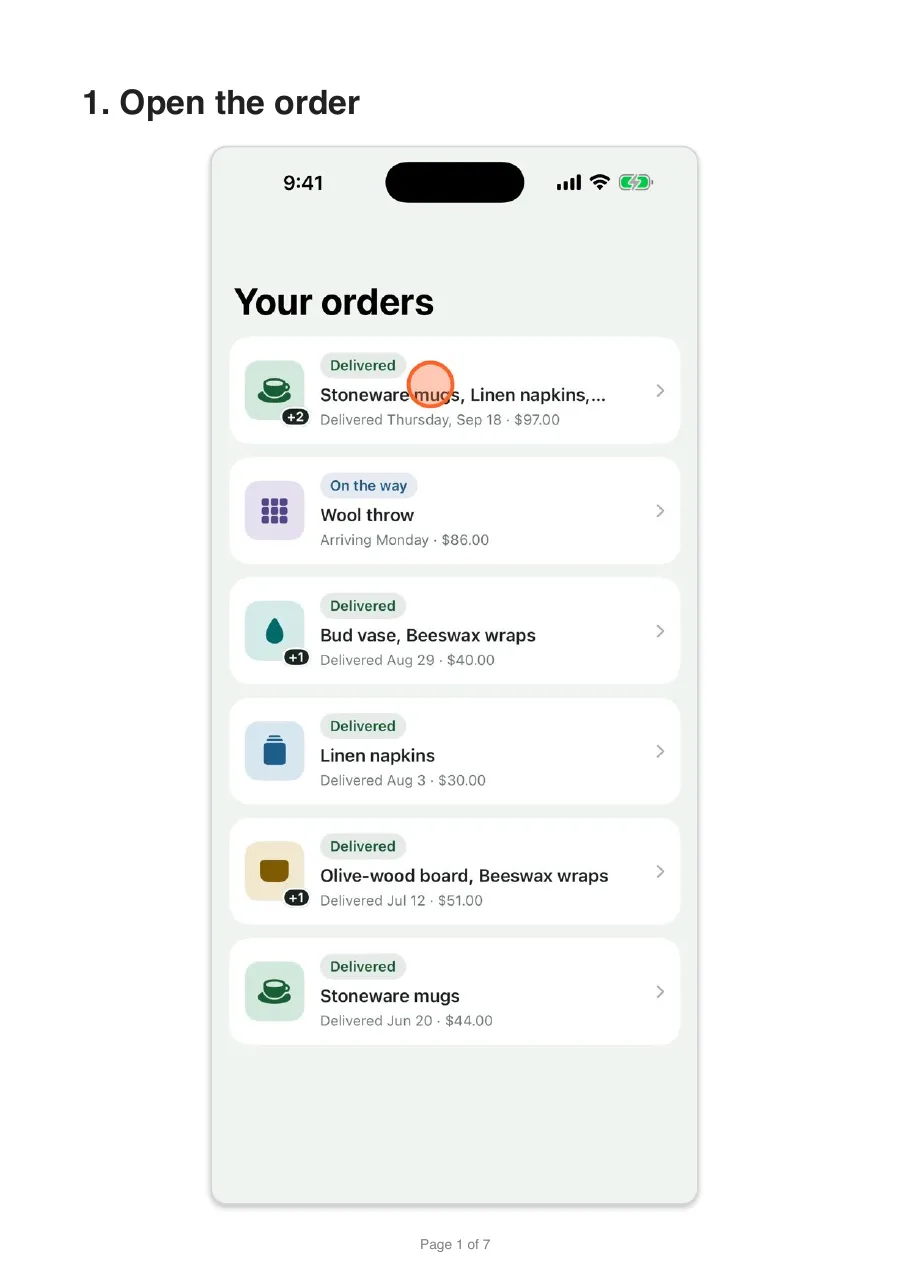
Privacy
How to properly redact a screenshot on iPhone
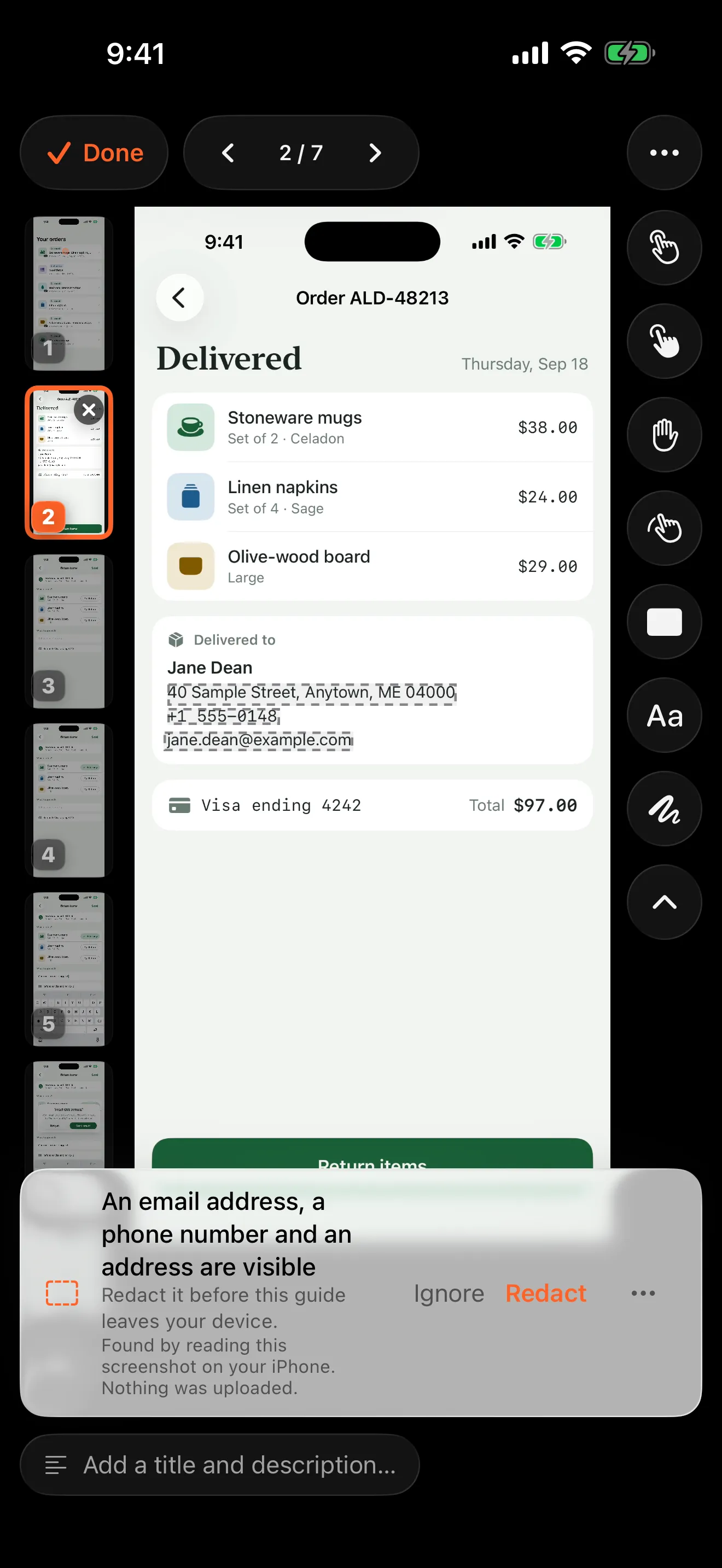
Cover private details with a solid shape and share a flattened copy. The free Markup method on iPhone and iPad, why blur fails, and what to check.
Comparisons
Screenshot guide or video tutorial: which to use?
Screenshots or video for a how-to? Choose by what the reader does next, whether that's following along, learning a gesture or looking one detail up.